

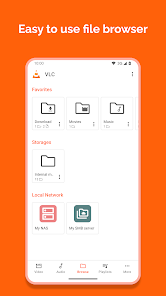
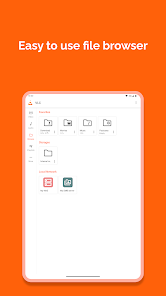
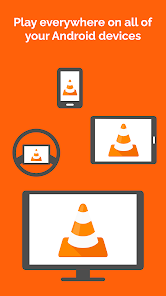
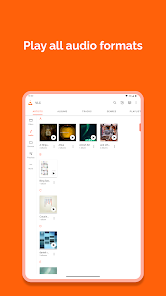
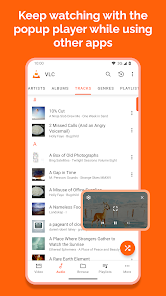
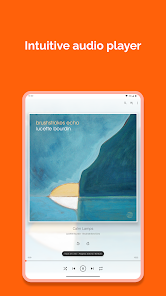
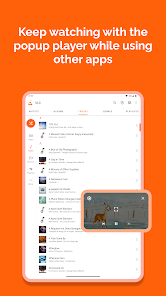
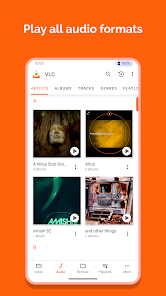
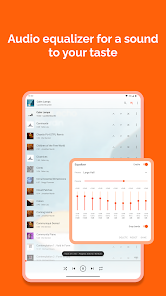
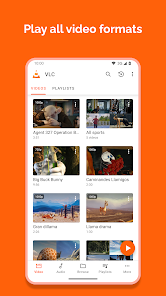
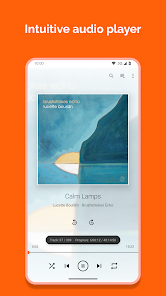
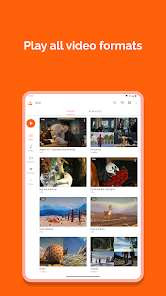
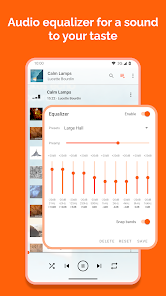
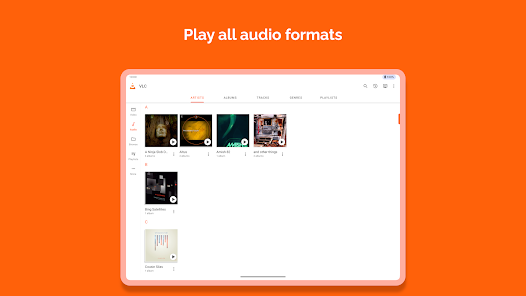
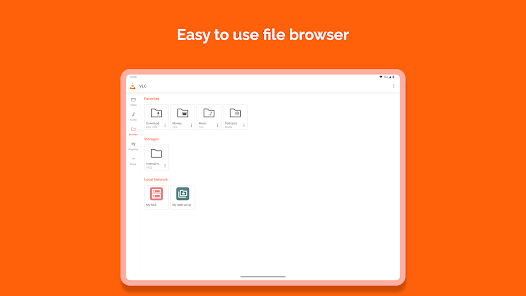
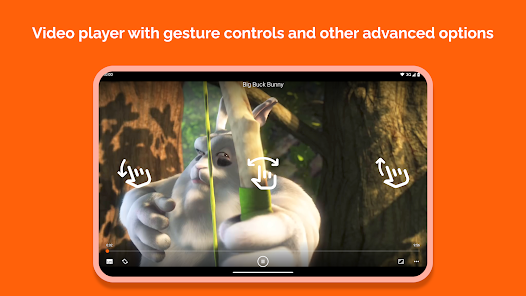
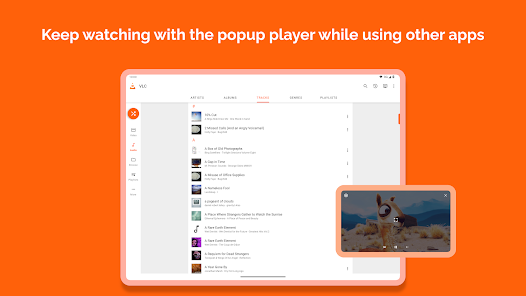
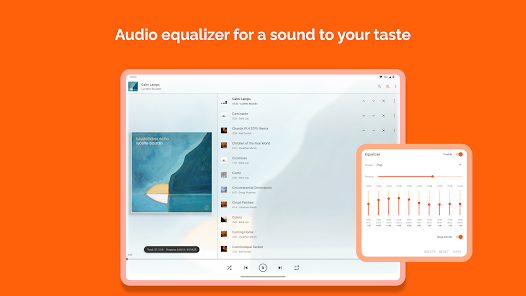
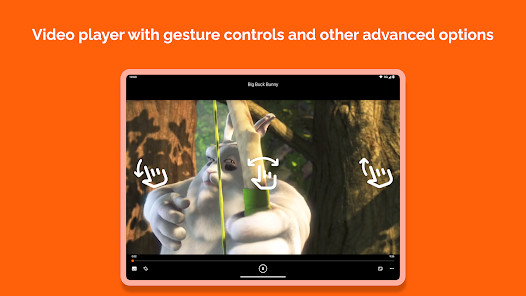
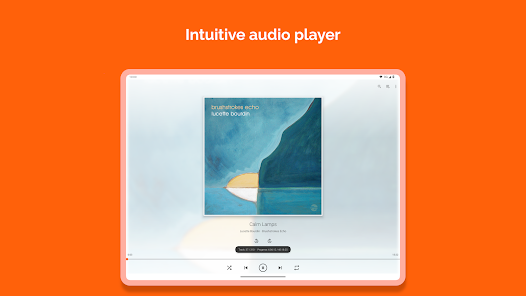
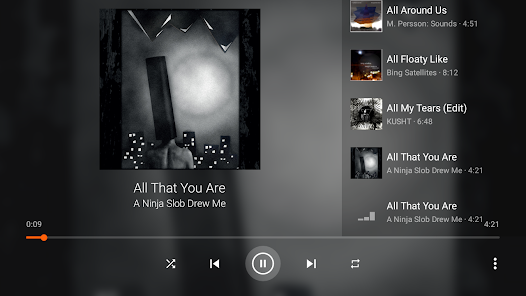
Media players are an essential part of any device. Whether you're a Windows user or a macOS user, chances are you have at least one media player installed on your computer. VLC media player is one of the most popular and feature-rich media players on the market. In this article, we will explore what VLC media player is, how it works, and some of its key features. We will also give you a few tips on how to use VLC media player to its fullest potential.
VLC media player is a free and open-source media player that is available for multiple platforms. It is one of the most popular media players and is used by millions of people around the world. Here are some of the features of VLC media player app: These are just some of the features of VLC media player app. It is a powerful and versatile media player that is suitable for both casual and advanced users. Is VLC media player safe to use? Yes, VLC media player is generally considered to be safe to use. It is an open-source program that is developed and maintained by a community of volunteers, and it is regularly updated to fix security vulnerabilities and other issues. As with any software program, it's always a good idea to download VLC media player from the official website (https://www.videolan.org/vlc/) to ensure that you are getting the genuine and up-to-date version of the program. Avoid downloading VLC media player from third-party websites, as these could potentially contain malware or other malicious software. Once VLC media player is installed on your device, you can use it with confidence, knowing that it is a safe and reliable program for playing audio and video files. Pros & Cons Pros: VLC is an extremely versatile media player that can be used for a wide variety of purposes. It is free and open source, which makes it a popular choice among software enthusiasts. The app has a large user base, which means that it is likely to have any missing features or bug fixes quickly addressed. It supports many file formats and can be used on a wide range of devices. Cons: Some users find VLC to be slow and cumbersome to use. Features of VLC Media Player App

 Supports a wide range of audio and video formats User-friendly interface for easy navigation No ads or subscription fees for a seamless experience Customizable playlists for personal media organization Offline playback allows enjoyment without internet access
 User interface can be confusing for new users Limited support for certain video formats Occasional playback issues with high-resolution files Lacks advanced features found in other players
  Google Play
  App Store
 VLC for Android is designed to prioritize user privacy and does not collect personal data. The app does not track users or require account creation.
VLC for Android is completely free to download and use, with no trial period or hidden costs. Users can access all features without any subscription fees.
No, VLC for Android does not require an internet connection to play local media files. However, you will need an internet connection if you wish to stream content online.
You can contact support or send feedback for VLC for Android through the official VLC website or forums, where you can find assistance and report issues. Additionally, you can leave feedback on the app store where you downloaded it.
Since VLC for Android does not have any subscription plans, there is no need to manage or cancel a subscription. Users can enjoy the app's features without any ongoing commitments.
No, VLC for Android does not require a login. You can use all features without creating an account.
You can find support and contact information on the official VLC website under the support section. They typically do not have a direct customer service number.
VLC for Android does not require activation. Simply download the app from the Google Play Store and start using it immediately.
VLC does not provide a customer service number. Instead, they offer forums and online support for user inquiries.