





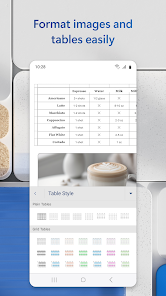
Microsoft Word is a powerful word processing application that offers a multitude of features for editing documents. One of the key features is the rich text formatting options, allowing users to customize fonts, sizes, colors, and styles to enhance the visual appeal of their documents. Additionally, Word provides tools for inserting images, tables, charts, and hyperlinks, which help in creating more interactive and informative documents. Another notable feature is the spell check and grammar check functionality, which aids users in maintaining professionalism by identifying and correcting errors in real-time. The Track Changes feature is particularly useful for collaborative efforts, as it allows multiple users to edit a document while maintaining a clear record of all modifications. Furthermore, Microsoft Word supports various file formats, making it easy to share documents with users who may have different software. Lastly, the integration with OneDrive enables cloud storage, facilitating easy access to documents from any device. Using Microsoft Word to edit documents is a straightforward process. First, open the application and create a new document or open an existing one by selecting it from your computer or cloud storage. Once the document is open, you can begin editing by typing directly into the text area. To format text, highlight the desired section and utilize the formatting toolbar at the top of the screen, where you can change font styles, sizes, colors, and apply bold, italics, or underline effects. If you wish to insert elements such as images or tables, navigate to the "Insert" tab and select the appropriate option. For collaborative editing, use the "Review" tab to enable Track Changes, so you can see edits made by others. Be sure to save your work frequently by clicking the save icon or using the keyboard shortcut (Ctrl + S). Finally, once you finish editing, you can save the document in various formats or share it directly through email or cloud services. Microsoft Word offers several advantages that cater to a wide range of users. One of its biggest pros is its extensive set of features that enhance document editing, including advanced formatting options and collaboration tools. The ease of use and intuitive interface make it accessible for both beginners and experienced users alike. Furthermore, compatibility with various file formats ensures that documents can be shared seamlessly across different platforms. Additionally, the cloud integration with OneDrive allows users to access their documents from anywhere, enhancing flexibility and convenience. However, there are also some drawbacks to consider. One major con is the cost, as Microsoft Word is a paid software, which may not be feasible for everyone. Furthermore, its rich feature set can be overwhelming for new users, leading to a steep learning curve. Additionally, while the software is generally reliable, it can occasionally experience bugs or crashes, which may result in lost work if not saved frequently. Lastly, some users prefer open-source or free alternatives that provide similar functionalities without the associated costs.Features of Microsoft Word: Edit Documents
How to Use Microsoft Word: Edit Documents
Pros & Cons of Microsoft Word: Edit Documents

 Intuitive interface for easy navigation and editing. Comprehensive formatting tools for professional-looking documents. Real-time collaboration enhances teamwork and productivity. Extensive templates simplify document creation and customization. Cloud integration ensures access from any device anytime.
 Limited collaboration features for multiple users Formatting issues can arise when sharing documents High system resource usage can slow performance Subscription model can be costly over time
 Yes, Microsoft Word: Edit Documents may collect personal data as outlined in Microsoft's privacy policy. This data is typically used to enhance user experience, provide support, and improve the app's functionality. Users can manage their privacy settings through their Microsoft account.
Microsoft Word: Edit Documents offers a free version with limited features, allowing users to create and edit documents. Additionally, a free trial of the full version may be available for new users, providing temporary access to all premium features.
While Microsoft Word: Edit Documents can be used offline, certain features, such as real-time collaboration and cloud storage access, require an internet connection. Most basic editing functions are available without being online.
To contact support or send feedback for Microsoft Word: Edit Documents, users can visit the Microsoft Support website or use the feedback option within the app. Support is available through various channels, including chat, email, and community forums.
You can manage or cancel your Microsoft Word: Edit Documents subscription by logging into your Microsoft account on the official website. From there, navigate to the subscriptions section to view your current plan and make any necessary changes.
You can reach customer service by visiting the official Microsoft support website or calling their support hotline listed on the site.
Open the app, go to "File," select "Account," and enter your product key under the activation section.
Your customer number can typically be found in your purchase confirmation email or by logging into your Microsoft account.
Open the app and click on the "Sign In" option, then enter your Microsoft account credentials.
Yes, activation is required to access all features; you can activate it using the product key received upon purchase.





 Google Play
  App Store