

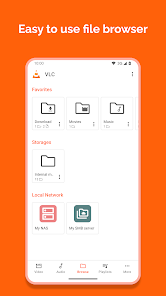
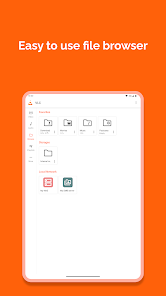
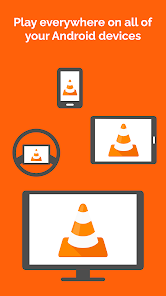
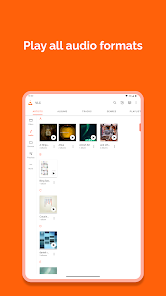
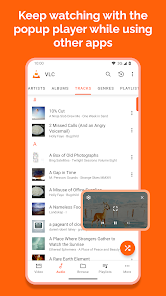
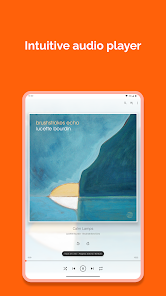
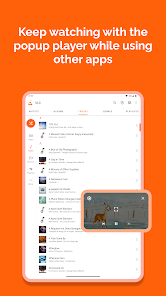
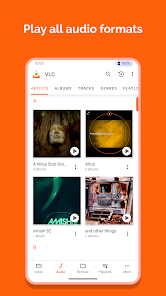
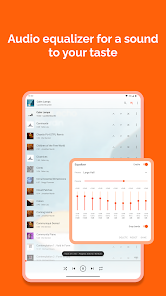
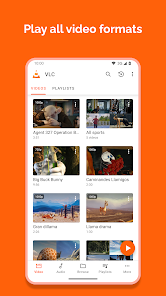
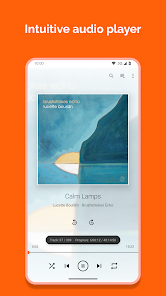
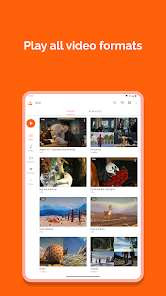
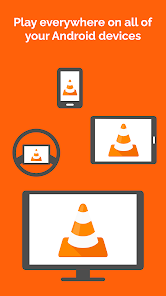
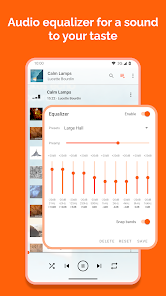
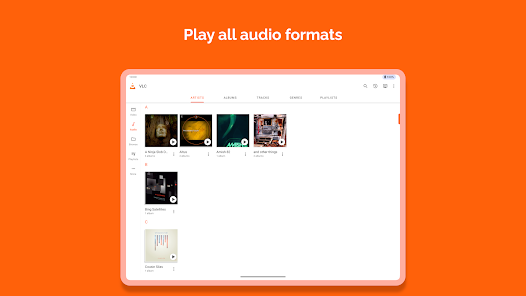
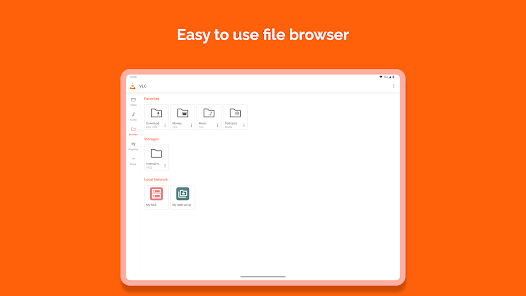
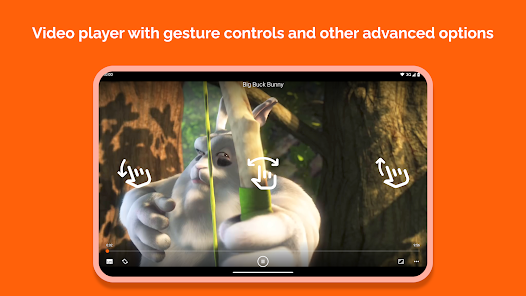
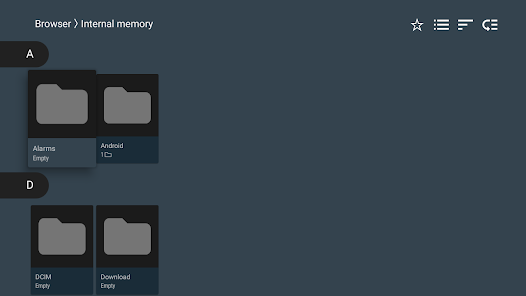
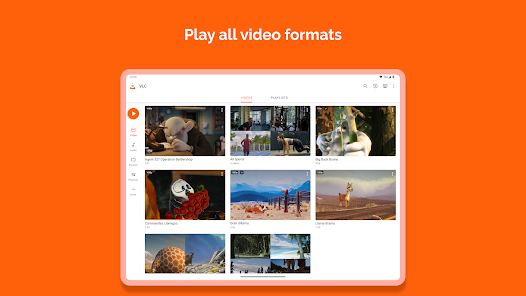
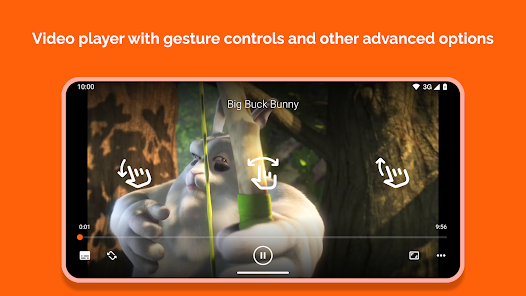
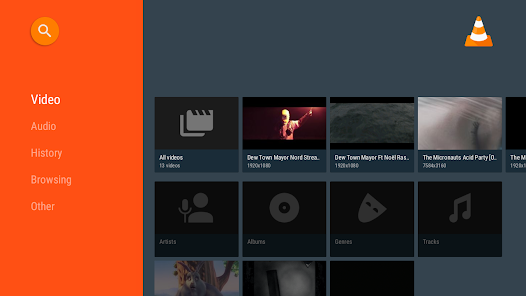
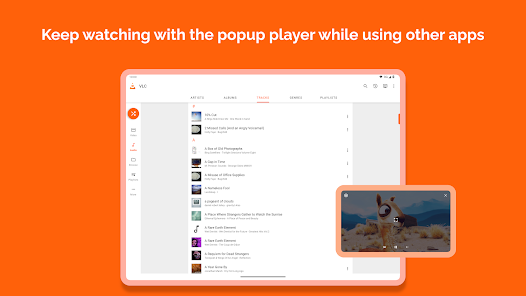
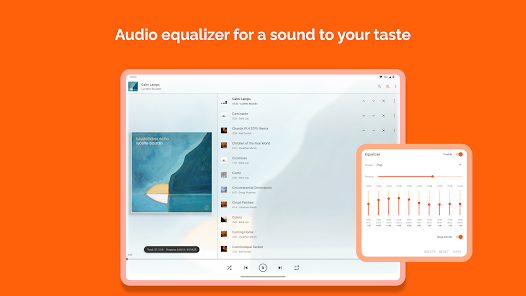
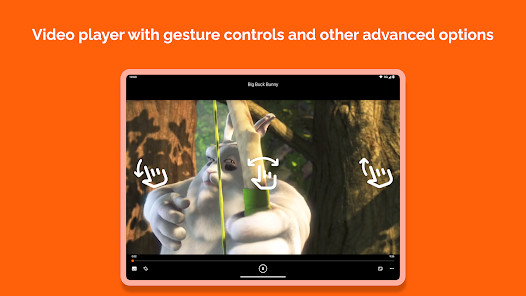
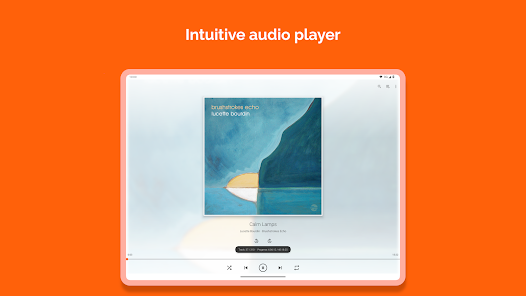
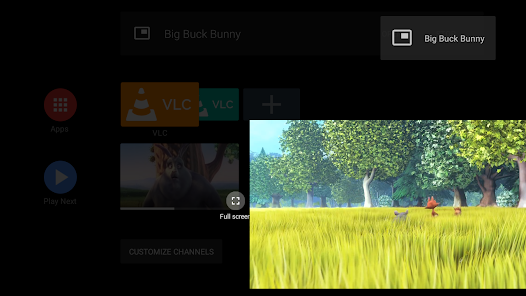
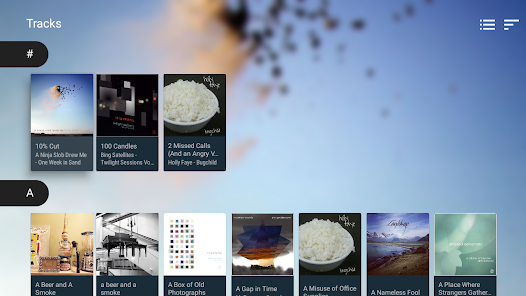
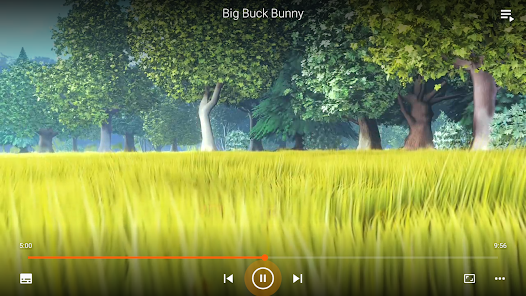
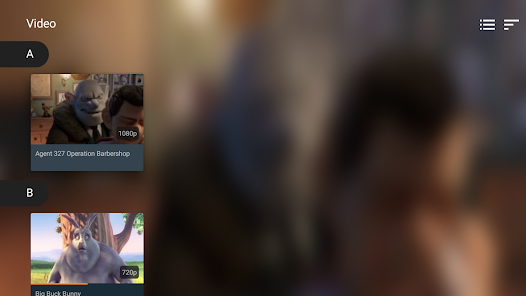
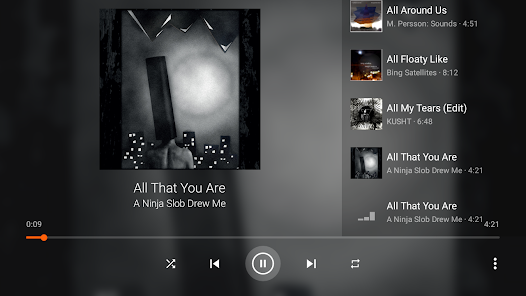
VLC for Android is a versatile media player that supports a wide range of audio and video formats, making it an excellent choice for users seeking flexibility. One of its standout features is its ability to play almost any file type without requiring additional codecs. This includes formats like MKV, MP4, AVI, MOV, and more. The app’s user-friendly interface allows easy navigation through local files, playlists, and streaming options. Another notable feature is its support for network streaming, allowing users to access media content from various sources, including cloud storage and online streams. VLC for Android also provides a robust equalizer, enabling users to adjust audio settings to their liking. The app supports subtitle integration, providing options to download and customize subtitles for a more immersive viewing experience. Additionally, users can benefit from features like playback speed control, media library organization, and gesture-based controls for a seamless media experience. Lastly, VLC is an open-source application, ensuring that it remains free of charge and ad-free. Regular updates enhance functionality and maintain compatibility with the latest file formats, making VLC for Android a reliable choice for media consumption on mobile devices. Using VLC for Android is straightforward, making it accessible for users of all experience levels. First, download the app from the Google Play Store and install it on your device. Upon launching VLC, you will be presented with a clean and intuitive interface, where you can easily browse your device’s media files. The main screen displays a list of available audio and video files, as well as options for accessing playlists and network streams. To play a media file, simply tap on the desired file, and VLC will begin playback. Users can control playback with on-screen buttons for play, pause, skip, and volume adjustment. To access additional features, tap the three-dot menu next to a file for options like adding to a playlist or sharing. For those who wish to customize their experience, navigate to the settings menu to adjust aspects such as audio equalizer, video quality, and subtitle preferences. For streaming content, tap on the “Network” tab to enter a URL or access network shares. You can also connect the app to cloud services to play files directly from your account. With these features, VLC for Android provides a comprehensive media playback experience that caters to a variety of user needs.Features of VLC for Android
How to Use VLC for Android

 Supports a wide range of audio and video formats User-friendly interface for easy navigation No ads or subscription fees for a seamless experience Customizable playlists for personal media organization Offline playback allows enjoyment without internet access
 User interface can be confusing for new users Limited support for certain video formats Occasional playback issues with high-resolution files Lacks advanced features found in other players
  Google Play
  App Store
 VLC for Android is designed to prioritize user privacy and does not collect personal data. The app does not track users or require account creation.
VLC for Android is completely free to download and use, with no trial period or hidden costs. Users can access all features without any subscription fees.
No, VLC for Android does not require an internet connection to play local media files. However, you will need an internet connection if you wish to stream content online.
You can contact support or send feedback for VLC for Android through the official VLC website or forums, where you can find assistance and report issues. Additionally, you can leave feedback on the app store where you downloaded it.
Since VLC for Android does not have any subscription plans, there is no need to manage or cancel a subscription. Users can enjoy the app's features without any ongoing commitments.
No, VLC for Android does not require a login. You can use all features without creating an account.
You can find support and contact information on the official VLC website under the support section. They typically do not have a direct customer service number.
VLC for Android does not require activation. Simply download the app from the Google Play Store and start using it immediately.
VLC does not provide a customer service number. Instead, they offer forums and online support for user inquiries.