

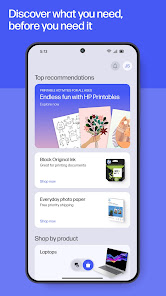
HP is one of the world's largest technology companies, and they have a range of mobile apps that can help you with your day-to-day tasks. From making calls to booking appointments, there's an HP app for just about everything. In this blog post, we will take a look at the HP Smart Mobile App and its features. We will also discuss some of the pros and cons of using this app, so that you can make the best decision for your needs.
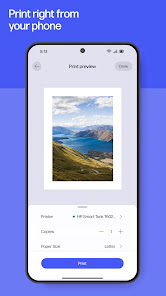
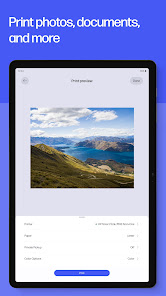
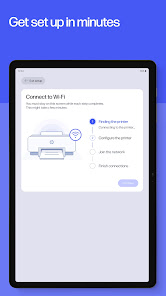
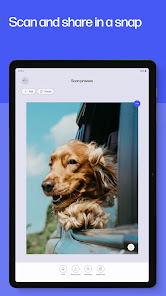
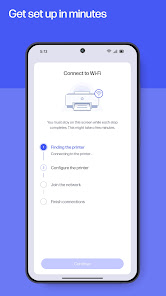
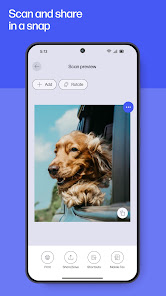
Features HP Smart Mobile App is a new mobile app that allows users to manage their devices and applications with one platform. The app offers features such as device security, remote management, troubleshooting and support. How to use HP Smart HP Smart is a free app that allows you to set up, scan, print, and manage your HP printer. To use HP Smart, you will need to download the app on your device and connect it to your printer. Once you have done this, you can follow these steps: Open the HP Smart app and sign in to your account. If you don't have an account, you can create one by following the on-screen instructions. Select your printer from the list of available devices. If your printer is not listed, you can add it by following the on-screen instructions. Once your printer is connected, you can use the HP Smart app to manage and control it. For example, you can view the printer's status, check the ink levels, and access the user manual. To print a document, tap on the "Print" tab at the bottom of the screen, and then select the document you want to print. You can choose a document from your device, or from a cloud service such as Dropbox or Google Drive. Once you have selected the document, you can adjust the print settings, such as the number of copies and the page range, and then tap on the "Print" button to start the printing process. To scan a document, tap on the "Scan" tab at the bottom of the screen, and then follow the on-screen instructions to scan the document. You can choose to save the scanned document on your device, or send it to a cloud service or email address. Overall, HP Smart is a convenient and easy-to-use app that allows you to manage and control your HP printer from your mobile device. By following these steps, you can start using HP Smart and take advantage of its features to print and scan documents on the go. Print Without HP Smart If you want to print without using the HP Smart app, you can use the built-in printing options on your device. Most devices, such as smartphones and tablets, have a built-in "Print" option in their settings or menu that allows you to print documents, photos, and other types of files. To print without using the HP Smart app, you will need to connect your device to your printer either wirelessly or with a cable. Once the connection is established, you can follow these steps: Open the document, photo, or file you want to print on your device. Tap on the "Share" or "Export" button, and then select the "Print" option from the list of available options. Select your printer from the list of available printers, and then adjust the print settings as needed. Tap on the "Print" button to start the printing process. If your device does not have a built-in "Print" option, you can use a third-party printing app to print your documents. There are many such apps available in app stores, and they allow you to connect to your printer and print documents, photos, and other types of files. Overall, while the HP Smart app is a convenient way to manage and control your printer, you can also print without using the app by using the built-in printing options on your device or a third-party app. Pros & Cons Pros: The HP Smart Mobile App is available on iOS and Android devices. It provides a convenient way to manage your personal and business related tasks. The HP Smart Mobile App allows you to access information and resources while on the go. You can use the HP Smart Mobile App to stay organized and up-to-date on your work schedule. Cons: Some features of the HP Smart Mobile App may not be available in all regions. The HP Smart Mobile App may require an internet connection to function properly.
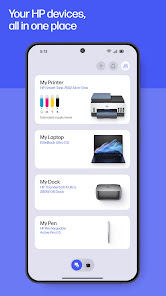
HP Smart Mobile App is a centralized platform that allows users to manage their devices and applications from one location. The app offers features such as device security, remote management, troubleshooting and support. HP Smart Mobile App also integrates with other HP services such as MyHP, OneView and Printing Solutions for Business to provide enhanced experience for customers.

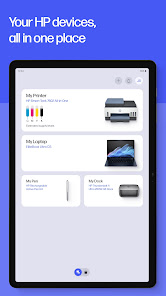
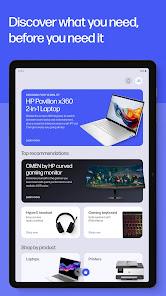
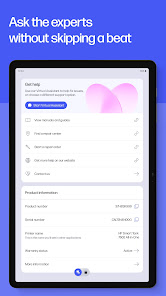
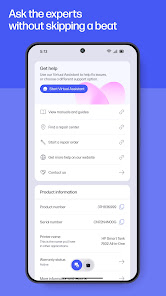
 Easily monitor printer status from your smartphone or tablet. Quickly troubleshoot issues with guided support and tips. Conveniently order supplies directly through the app. Effortlessly manage multiple printers from one interface. Enjoy seamless printing from anywhere with mobile connectivity.
 Limited functionality compared to traditional printer software limits user control over settings. Frequent connectivity issues can disrupt printing tasks and frustrate users. Some features require an internet connection, restricting offline usability.
  Google Play
  App Store
 Yes, users can submit suggestions or feedback through the app's support section, where they can provide input that may help improve future versions of the app.
Yes, the app may collect certain personal data for functionality and user experience improvements, but it adheres to HP's privacy policies regarding data handling and protection.
While some features can be accessed offline, the full functionality of HP Smart (HP AiO Remote) typically requires an internet connection, especially for setup and cloud-based services.
To cancel a subscription, users must go to their account settings within the app or the app store where the subscription was purchased and follow the cancellation process provided.
The subscription costs vary based on the additional features or services chosen; users can check the app for specific pricing details.
No, customer numbers cannot be updated online. Please contact HP customer service for assistance with changes to your customer number.
Log in to your account settings and update your email. If you face difficulties, reach out to customer service for guidance.
You can reach HP customer service by visiting the HP support website or calling their customer support number listed there.
To activate your HP account, follow the activation link sent to your email after registration. If you didn’t receive it, check your spam folder or contact customer service.
To log in, visit the HP website, click on the sign-in button, and enter your credentials. If you encounter issues, ensure your account is activated.