







Are you tired of constantly switching between communication apps on your mobile device? Want to streamline your workflow and stay connected with your team on the go? Look no further than the Microsoft Teams mobile app! With features like video conferencing, chat messaging, file sharing, and more, this app is a game-changer for remote work and collaboration. In this blog post, we'll explore all the ways that the Microsoft Teams mobile app can enhance productivity and simplify communication for any team. Whether you're working from home or on-the-go, this app has got you covered - so let's dive in!
Features and Functions The Microsoft Teams mobile app is packed with features and functions that make it a must-have tool for anyone who needs to stay connected while on the go. Here are just a few of the many features and functions available in the Microsoft Teams mobile app: How to Use Microsoft Teams If you're like most people, you probably use your smartphone for just about everything. Checking email, browsing the web, staying up-to-date on social media, and even managing your work life. So it only makes sense that there's a Microsoft Teams mobile app! Pros & Cons There are several reasons you might want to use the Microsoft Teams mobile app. Perhaps you’re a remote worker who needs to stay connected to your team, or you want to be able to access your work files from anywhere. Whatever the reason, the Microsoft Teams mobile app can be a helpful tool.
-Instant messaging: Stay connected with colleagues, clients, and others using the instant messaging feature.
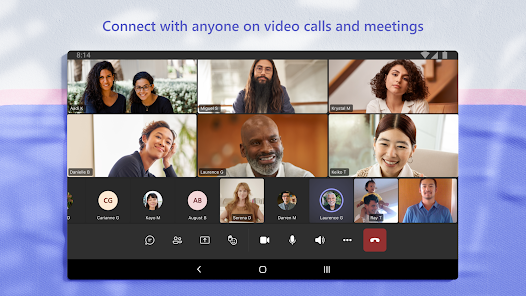
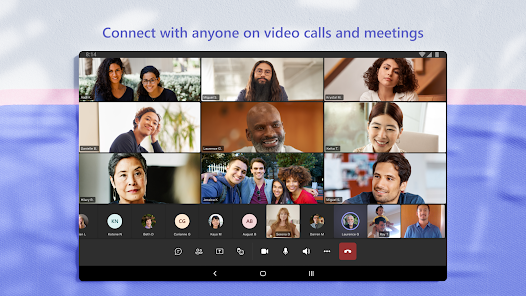
-Voice and video calls: Make calls and hold video conferences right from the app.
-Screen sharing: Share your screen with others during calls and meetings.
-File sharing: Share documents, photos, and other files with ease.
-Integrations: Connect to other apps and services you use every day, such as OneDrive, Office 365, Twitter, and more.
Using the Microsoft Teams mobile app is easy and convenient. Here's how to get started:
1. Download the app: First things first, you'll need to download the Microsoft Teams app. It's available for free on iOS and Android devices.
2. Sign in: Once you've downloaded the app, open it up and sign in with your Office 365 account. If you don't have an Office 365 account, you can create one for free.
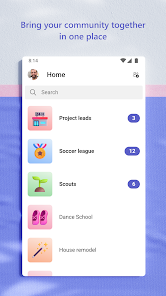
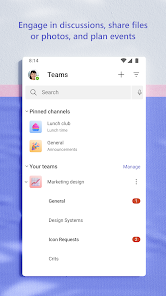
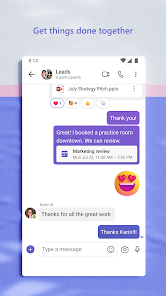
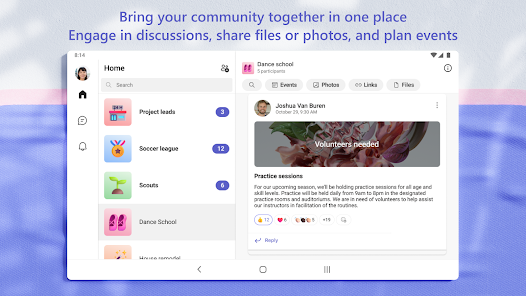
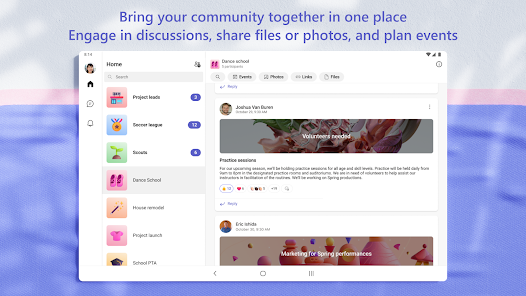
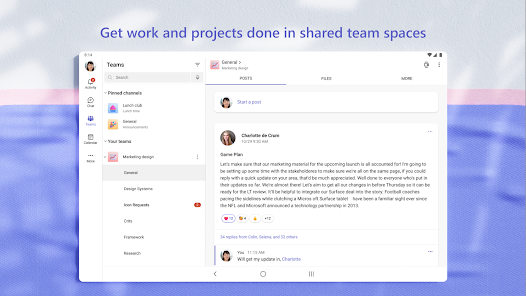
3. Start chatting: After you've signed in, you'll be taken to your team's chat interface. From here, you can start chatting with your team members about whatever project you're working on. You can also create new channels to discuss specific topics or join existing ones.
4. Make audio or video calls: The Microsoft Teams mobile app also lets you make audio and video calls. Just tap on the "Calls" tab at the bottom of the screen and then tap on the "New call" button. You can then search for a contact or team member to call them directly.
5. Share files: The last thing you can do with the Microsoft Teams mobile app is share files with your team
Of course, there are also some drawbacks to using the app. For example, it can drain your battery quickly, and it doesn’t offer all of the same features as the desktop version of Microsoft Teams.
Still, if you need to stay connected to your team while on the go, the Microsoft Teams mobile app is worth considering.

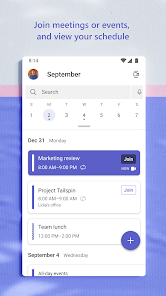
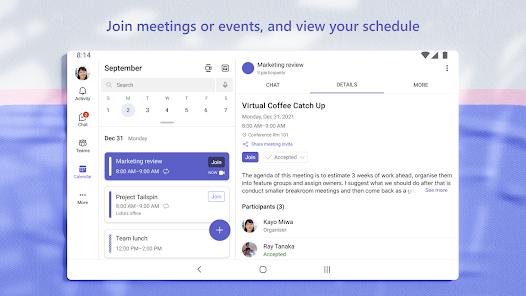
 Boosts collaboration with integrated chat and video calls Supports seamless file sharing for team projects Enhances productivity with customizable apps and tools Facilitates easy scheduling with calendar integration Ensures security with advanced data protection features
 Limited integration with non-Microsoft apps Complex user interface for newcomers Performance issues with large teams Notification overload can cause stress
  Google Play
  App Store
 Microsoft Teams may collect personal data to provide its services, including user information and activity data, but it complies with privacy regulations and offers settings to manage your data privacy.
Yes, Microsoft Teams offers a free version with limited features, as well as a trial for its premium plans, allowing users to explore the platform's capabilities before committing to a subscription.
Yes, Microsoft Teams requires an internet connection to function effectively, as it relies on cloud services for communication, file sharing, and collaboration features.
You can contact Microsoft Teams support through the help section in the app, or visit the Microsoft support website for additional resources, and you can send feedback directly from the app using the feedback feature.
You can manage or cancel your Microsoft Teams subscription through the Microsoft 365 admin center or the billing section of your account settings, depending on the type of subscription you have.
You can contact Microsoft Teams customer service through the official Microsoft support website or by calling their support number available in your region.
If you need to activate Microsoft Teams, sign in with your Microsoft account, and follow the prompts to complete the activation process.
Your customer number is typically found in your Microsoft account settings or on your billing statement.
To log in, visit the Microsoft Teams website or app, enter your email and password, and click "Sign In."