


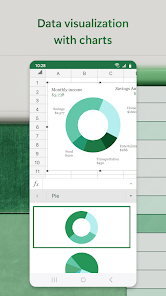
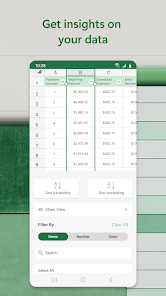
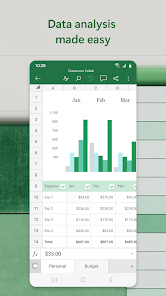




Microsoft Excel is a powerful spreadsheet application that offers a variety of features designed to facilitate data analysis, organization, and visualization. One of its most notable features is the ability to create and manipulate spreadsheets with rows and columns, allowing users to input and manage large datasets efficiently. Excel supports various data types, including text, numbers, and dates, making it versatile for different applications. Another key feature is the extensive library of formulas and functions that enable users to perform complex calculations and data analysis with ease. Functions like VLOOKUP, SUMIF, and pivot tables allow for advanced data manipulation, making it easier to derive insights from the data. Additionally, Excel includes robust charting tools that let users create visual representations of their data, such as graphs and charts, enhancing the readability of reports. Excel also supports conditional formatting, which allows users to highlight cells based on specific criteria, making it easier to identify trends and anomalies. Furthermore, the application offers collaboration features, allowing multiple users to work on a single document simultaneously, which is particularly useful for team projects. Overall, Microsoft Excel provides a comprehensive set of tools for efficient data management and analysis. Using Microsoft Excel involves several key steps to effectively manage and analyze data. First, users can start by opening a new workbook, which consists of multiple sheets. Each sheet can have its own set of data organized in rows and columns. To enter data, simply click on a cell and type in the information; pressing 'Enter' will move you to the next cell down, while 'Tab' will take you to the next cell to the right. Once data is entered, users can utilize Excel's formula bar to perform calculations. For example, to add values in a range of cells, you can use the SUM function, like so: =SUM(A1:A10). Excel automatically recalculates the results as data is changed, providing real-time updates. Additionally, users can format their spreadsheets for easier readability, using features like bold text, cell colors, and borders. To analyze data, Excel provides tools such as pivot tables and charts. Pivot tables allow users to summarize data by grouping it into categories, making it easier to draw insights. For visualization, select the data and insert charts to create graphical representations. Finally, users can save and share their work, allowing for collaboration and review. Mastering these features will enable you to leverage Excel effectively for various data management tasks.Features of Microsoft Excel: Spreadsheets
How to Use Microsoft Excel: Spreadsheets?

 User-friendly interface simplifies data management tasks Powerful formulas enable complex calculations effortlessly Customizable charts visualize data for better insights Collaboration features enhance teamwork on projects Data analysis tools streamline decision-making processes
 Prone to human error in data entry mistakes Difficult to manage large datasets effectively Limited collaboration features for teams Poor version control and tracking changes
  Google Play
  App Store
 Microsoft Excel: Spreadsheets may collect personal data as outlined in Microsoft's privacy policy, primarily for account management, service improvement, and security purposes.
Yes, Microsoft Excel: Spreadsheets offers a free trial for new users, and there is also a free version available through Microsoft 365 online, which provides basic features.
While Microsoft Excel: Spreadsheets can be used offline, some features, such as real-time collaboration and cloud storage access, do require an internet connection.
You can contact support for Microsoft Excel: Spreadsheets through the Microsoft Support website, where you can access help articles, chat with a support agent, or submit feedback directly.
You can manage or cancel your Microsoft Excel: Spreadsheets subscription through your Microsoft account settings, where you can view your subscription details and follow the prompts to make changes.
You can reach Microsoft customer service through the support page on their website or by calling their dedicated support number.
To activate, open Excel, go to File > Account > Activate Product, and follow the prompts using your product key or Microsoft account.
Open Excel and click on "Sign in" at the top right corner, then enter your Microsoft account credentials.
Yes, activation is required to use certain features, especially for the paid versions.
You can find the customer support number specific to your region on the Microsoft support website.