



Music videos are a great way to showcase your musical talent and get your name out there. But making a music video can be a lot of work, and not everyone has the time or resources to do it. That's where Tempo comes in. Tempo is a mobile app that makes it easy and fun to create professional-looking music videos. With Tempo, you can shoot and edit your video all in one place, and share it with the world with just a few taps. In this blog post, we'll show you how to use Tempo to make a music video for your next song or performance. We'll also give you some tips on how to make your video stand out from the rest. So if you're ready to start making music videos, read on!
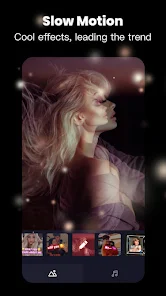
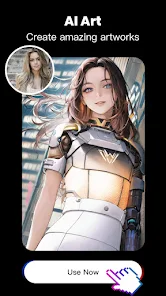
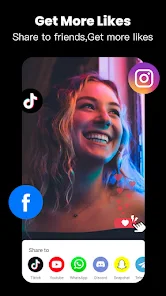
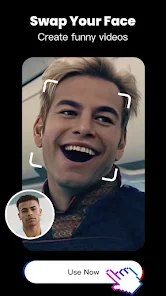
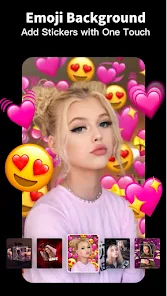
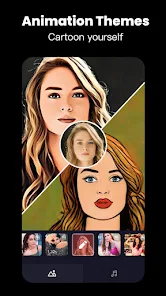
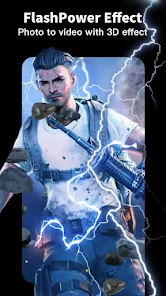
Tempo is a music video maker mobile app that allows you to create professional looking music videos with ease. The app provides a wide range of features that make it easy to produce high quality music videos. Some of the key features of Tempo include: - A user-friendly interface that makes it easy to navigate and use the various features of the app. - A wide range of built-in tools that allow you to easily add visual effects, transitions, and other enhancements to your music videos. - A library of royalty-free music that you can use in your videos. - The ability to share your music videos with others via social media or email. Tempo provides simple editing tools so you may quickly create videos or use video templates to do so. You can experiment with glitch effects to add life to your pictures. The video effects offered by Tempo are made to be the ideal choice for editing quick videos. Tempo has a ton of music that can make your video entertaining and well-liked. Edit a video with music and a picture for Instagram using this cool music video editor with effects! When you first open Tempo, you'll be prompted to choose a video template. You can browse through the available templates by category or search for a specific template. Once you've found a template you like, tap on it to select it. Next, you'll need to add your music. You can either choose a song from your own library or select one of the songs included with Tempo. To add your own music, tap the "My Music" button and then select the song you want to use. To use one of the included songs, tap the "Included Songs" button and then select the song you want to use. Once you've added your music, it's time to add your video content. You can either record new video footage or select existing videos from your camera roll. To record new video footage, tap the "Record Video" button and then start recording. To select existing videos from your camera roll, tap the "Choose from Library" button and then select the videos you want to use. Once you've added all of your content, you can preview your video by tapping the "Preview" button. If you're happy with what you see, tap the "Export" button to save your video. Features:
How to use Tempo - Music Video Maker?

 Create stunning music videos easily with intuitive drag-and-drop features. Access a vast library of licensed music tracks for seamless integration. Customize videos with filters, effects, and text for a unique touch. Share your creations directly on social media platforms with one click. Collaborate with friends and artists to enhance your video projects.
 Limited customization options may restrict creative expression in videos. Performance can lag on lower-end devices, affecting user experience. Watermarked outputs in the free version can diminish professional appeal.
 Yes, users can submit suggestions or feedback through the app's feedback feature or by contacting customer support, as the developers value user input for future improvements.
Tempo - Music Video Maker may collect certain personal data as outlined in its privacy policy, typically for app functionality and user support purposes. Users are encouraged to review the privacy policy for detailed information.
Yes, Tempo - Music Video Maker allows users to edit and create music videos offline, though some features may require an internet connection for music downloads or updates.
To cancel your Tempo - Music Video Maker subscription, you can go to the app store settings on your device, navigate to subscriptions, and follow the prompts to cancel your subscription.
The subscription cost for Tempo - Music Video Maker varies based on the selected plan, typically offering monthly and yearly options that provide users with access to additional features and content.
You can view your customer number in the "Account" section of the app under "Profile Information."
You can reach customer service by emailing support
After signing up, check your email for an activation link. Click it to activate your account and start using Tempo.
For billing inquiries, contact customer service via email or the in-app support feature. They'll assist you promptly.
You can find your customer number in your account settings under "Profile" or contact customer service for assistance.









 Google Play
  App Store