


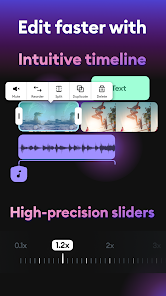
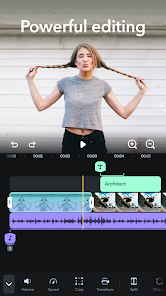
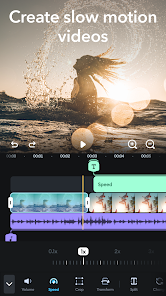
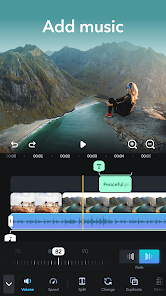
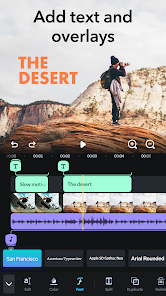
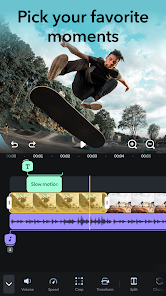
Splice - Video Editor & Maker App is a powerful and easy-to-use video editing app for iOS and Android devices. It allows users to create stunning videos with a few taps and swipes. With Splice, users can easily combine photos and videos, add music, and apply effects and transitions to create professional-looking videos. The app also includes a library of royalty-free music and sound effects, as well as tools for adjusting video speed, trimming clips, and adding text and titles. Splice also offers a range of sharing options, allowing users to quickly share their creations with friends and family. With its intuitive interface and powerful features, Splice makes it easy for anyone to create beautiful videos in minutes.
Splice offers a variety of features to help you create professional-looking videos on your mobile device. With Splice, you can trim and rearrange video clips, add titles and transitions, and even record voiceovers. You can also use Splice to create time-lapse videos. The Splice app is a video editing and making tool that lets you create professional-looking videos on your iPhone or iPad. With Splice, you can easily add music, photos, and transitions to your video. You can also share your videos with friends and family directly from the app. There are a lot of things to like about the Splice app. It's user-friendly and has a ton of features, making it a great choice for those looking for a video editor. However, there are also some drawbacks. First, the app can be buggy and crash occasionally. Second, it doesn't have as many features as some of the other video editing apps on the market.Features and Functions
One of the best features of Splice is that it's very easy to use. The interface is designed for touch, so you can quickly add or remove clips with a few taps. You can also preview your video as you're working on it, so you always know what your final product will look like.
If you're looking for a powerful yet easy-to-use video editor for your mobile device, Splice is a great option.How to Use Splice - Video Editor & Maker
To use Splice, simply download the app from the App Store and open it on your device. Then, select the photos and videos you want to include in your video. Once you've selected all of the content for your video, tap "Splice" to start editing.
You can then add music, transitions, and other effects to your video. To do this, tap on the "Effects" button at the bottom of the screen. Here, you can browse through different effect categories and select the ones you want to apply to your video. When you're finished adding effects, tap "Done" to save your changes.
Finally, you can share your video with others by tapping on the "Share" button at the bottom of the screen. From here, you can choose to share your video through email or social media sites like Facebook and Twitter.Pros & Cons

 User-friendly interface for effortless video editing and creation. Extensive library of music and sound effects enhances projects. Advanced features like slow motion and speed adjustments elevate creativity. Seamless sharing options make distribution to social media quick and easy. Regular updates ensure access to the latest tools and trends.
 Limited advanced editing features may frustrate professional users Lacks multi-track editing, restricting complex projects Some users report performance issues on older devices
 Yes, users can submit suggestions or feedback through the app's support feature or by visiting the official website to contact customer support.
Splice - Video Editor & Maker may collect personal data as outlined in its privacy policy, including information related to usage patterns and device details.
Yes, Splice - Video Editor & Maker allows users to edit videos offline, though an internet connection may be required for certain features like music and stock footage access.
To cancel your subscription, you can go to your account settings in the app store where you purchased the subscription and follow the cancellation instructions.
Subscription costs for Splice - Video Editor & Maker may vary depending on the chosen plan, typically offering monthly and annual options for premium features.
Unfortunately, customer numbers cannot be changed. If you have concerns, please reach out to customer service for further assistance.
You can reach our customer service team through the app's help section or by visiting our website's support page.
To update your login details, go to your account settings in the app and follow the prompts. For further support, contact customer service.
To activate your account, follow the link sent to your email upon registration. If you didn't receive it, please check your spam folder or contact customer service.
Simply download the Splice app, open it, and enter your existing credentials to log in. If you experience issues, contact customer service.












 Google Play
  App Store