

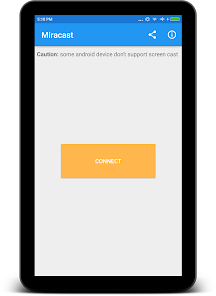
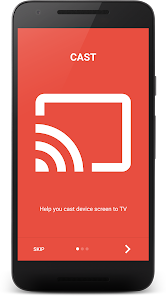
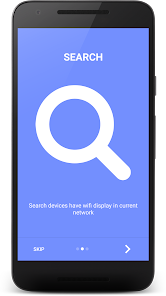
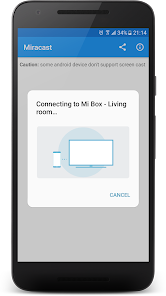
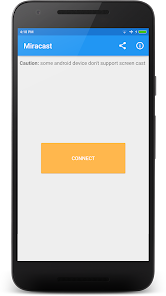
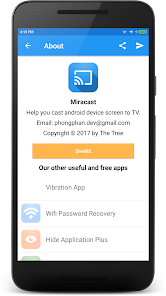
Miracast is a wireless display standard that allows you to mirror your device's screen to another display without using any cables. It uses Wi-Fi Direct to create a point-to-point connection between your device and the receiver, so no internet connection is required. Miracast is supported on a variety of devices including Android smartphones and tablets, Windows laptops and PCs, and some smart TVs. If you're not sure if your device supports Miracast, you can check by searching for 'Miracast” in the settings menu.
Technology has made its way into our lives in more ways than one, and it’s no surprise that we rely on it for a lot of what we do. From streaming movies and TV shows to playing games and connecting with friends, technology is never far away. One of the newest tools to make its way into the world of streaming is Miracast - Wifi Display. This app allows users to wirelessly mirror their devices onto TVs or other displays without having to worry about cables or complicated setup processes. In this blog post, we will be taking a look at this new app and see how it stacks up against similar options on the market. If you have a Windows 10 laptop or PC, you can use Miracast to share your screen with a TV. Here's how: There are a few different ways to wirelessly display content from your phone or tablet to a TV or projector, and Miracast is one option. Miracast uses Wi-Fi Direct to establish a direct connection between your device and the receiver, without going through a router or access point. This means that it can be used even if there is no Wi-Fi network available."Features
How to use Miracast - Wifi Display?
1. First, make sure that your TV supports Miracast and that it's turned on.
2. Next, open the Action Center by clicking the icon in the taskbar.
3. Click 'Connect' and then select your TV from the list of available devices.
4. If prompted, enter the PIN for your TV.
5. Your screen will now be shared with your TV! To stop sharing your screen, just click 'Disconnect' in the Action Center.Pros & Cons
One advantage of Miracast is that it is an industry standard, so it is compatible with a wide range of devices from different manufacturers. Another advantage is that it can be used to mirror your device's screen, so you can show others what you're seeing on your screen.
A couple of potential drawbacks of Miracast are that it can be interrupted by other Wi-Fi traffic, and it requires both the sender and receiver to support Miracast.

 Wirelessly stream content from devices to displays Supports a wide range of devices for compatibility Easy setup without additional hardware required High-quality video and audio transmission capabilities Allows for screen mirroring and sharing effortlessly
 Limited device compatibility with older hardware Connection drops can occur during streaming sessions Higher latency compared to wired connections No support for advanced audio formats
 Miracast - Wifi Display may collect some technical data for functionality and improvement purposes, but it does not collect personal data without user consent.
Yes, Miracast - Wifi Display typically offers a free version with limited features, as well as a premium version with additional functionalities available for a subscription fee.
No, Miracast - Wifi Display does not require an internet connection as it uses Wi-Fi Direct technology to establish a direct wireless connection between devices.
You can contact support or send feedback through the app's help section or by visiting the official website, where you can find contact information and support resources.
You can manage or cancel your Miracast - Wifi Display subscription through the app settings or the app store from which you purchased the subscription.
You can reach customer service through the app’s settings or visit their official website for support contact details.
Generally, the app does not require a login. Simply download and open the app to start using it.
Activation usually occurs automatically when you connect to a compatible device. Follow the on-screen instructions to initiate the connection.
The customer support number may vary by region; check the app's official website for the correct number.






 Google Play
  App Store