

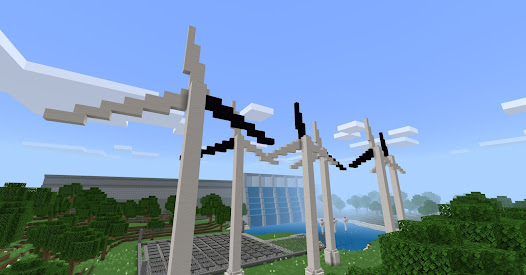
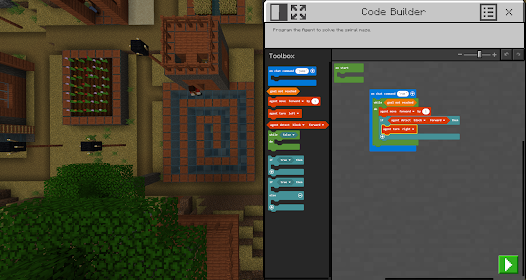
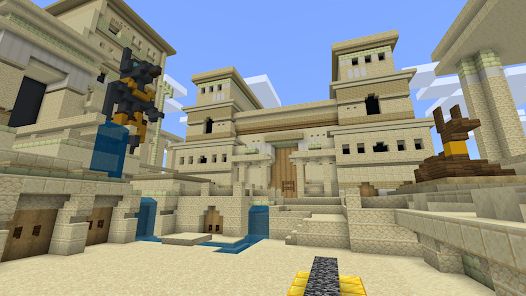
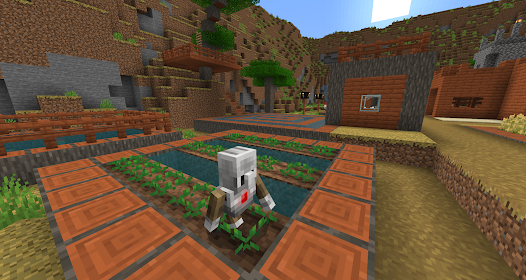
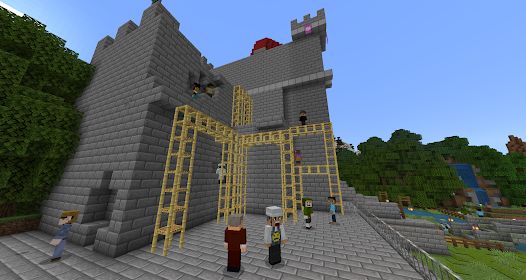
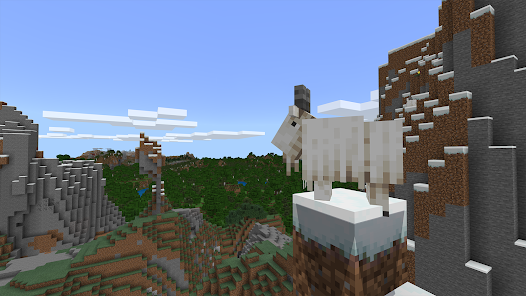
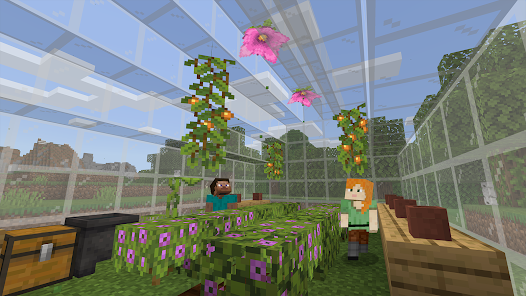
Minecraft Education Edition is designed specifically for classroom use and offers a variety of unique features that enhance the learning experience for students. One of the standout features is the Classroom Mode, which allows teachers to manage and oversee student activities in real-time. This mode provides tools for managing student interactions and monitoring progress, making it easier for educators to guide their students through lessons. Another significant feature is the extensive library of lesson plans and resources available within the game. Educators can access a wide range of subjects, including math, science, history, and art, all tailored to meet educational standards. These resources help teachers integrate Minecraft seamlessly into their curriculum, making learning more interactive and engaging. Additionally, Minecraft Education Edition includes in-game coding and programming lessons, enabling students to learn computational thinking through a fun and immersive environment. The game also supports collaborative projects, allowing students to work together on tasks, fostering teamwork and communication skills. The use of creative building and problem-solving challenges further enhances critical thinking and encourages creative expression among students. Overall, the features of Minecraft Education Edition create a dynamic learning environment that promotes engagement, collaboration, and creativity. Using Minecraft Education Edition in the classroom or for educational purposes involves several key steps to ensure an effective learning experience. First, educators need to obtain a license for Minecraft Education, which typically involves signing up through a school or educational institution. Once the software is installed, teachers can explore the various features and lesson plans available within the platform. After familiarizing themselves with the game's functionalities, educators can select specific lessons or create custom worlds tailored to their curriculum. It’s important to set clear learning objectives for each session to provide students with a focused goal. Teachers can then introduce students to the game, explaining how to navigate the environment and use the tools available. During gameplay, educators can utilize Classroom Mode to monitor student progress and facilitate discussions. This mode allows teachers to guide students through challenges, provide assistance, and encourage collaboration among peers. To enhance the learning experience, teachers can incorporate coding lessons and problem-solving tasks that align with the objectives of the lesson. Finally, after the gameplay session, it’s beneficial to conduct a debriefing where students can reflect on their experiences, discuss what they learned, and share their creations. This reinforces the educational content and helps students articulate their understanding of the material.Features of Minecraft Education
How to Use Minecraft Education?

 Promotes creativity through open-world exploration and building. Enhances collaboration with multiplayer projects and teamwork. Teaches coding and problem-solving in an engaging way. Supports diverse learning styles with interactive experiences. Encourages critical thinking through challenges and quests.
 Limited access for non-educational users High subscription costs for schools Requires stable internet for optimal experience Basic features compared to standard Minecraft
 Minecraft Education adheres to privacy guidelines and collects minimal personal data necessary for account creation and usage, with a focus on protecting student privacy and ensuring a safe learning environment.
Yes, Minecraft Education offers a free trial for educators and students, allowing them to explore the app's features before committing to a subscription.
While some features of Minecraft Education can be accessed offline, an internet connection is required for multiplayer functionality, accessing online resources, and downloading additional content.
You can contact support or send feedback for Minecraft Education through the official website, where you can find resources, FAQs, and contact forms to reach the support team for assistance.
You can manage or cancel your Minecraft Education subscription through the account management section of the official Minecraft Education website, where you can access subscription settings and billing information.
You can reach customer service through the official Minecraft Education website or by emailing support
To activate, follow the link in the confirmation email sent to you after registration and complete the setup process.
Your customer number is typically included in your purchase confirmation email. Check your inbox for details.
Open the app and enter your school email and password provided by your institution.






 Google Play
  App Store