


Microsoft Family Safety is a great way to keep your family safe online. With this program, you can set up filters and restrictions for your family's online activity, as well as monitor their online activity. You can also receive alerts if your family members are trying to access restricted content or engaging in risky behavior online. Microsoft Family Safety is a valuable tool for keeping your family safe online.
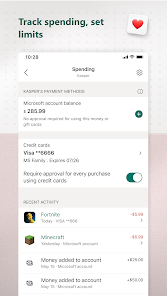
The Microsoft Family Safety app is a free application that helps parents keep their children safe online. The app provides parents with tools to monitor their children's activity, set limits on screen time, and filter content. The app also includes features to help parents manage their own online activity and stay informed about their children's safety. If you're like most parents, you want to do everything you can to keep your kids safe online. Microsoft Family Safety is a great way to do just that. Here's how to use it:Features and Functions
How to Use Microsoft Family Safety
1. Sign up for a free Microsoft account if you don't already have one.
2. Download the Microsoft Family Safety app from the App Store or Google Play.
3. Open the app and sign in with your Microsoft account.
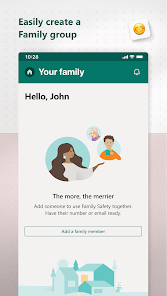
4. Follow the prompts to set up your family's profile and preferences.
5. Add your kids' Microsoft accounts to their profiles.
6. That's it! You're now ready to start monitoring your child's online activity and setting limits on what they can do and see online.

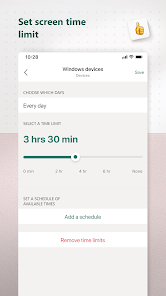
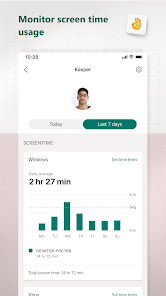
 Easily monitor family location in real-time for added peace of mind. Set screen time limits to promote a healthy digital balance. Receive activity reports to stay informed about your family's online habits. Enable driving safety features to protect young drivers and encourage safe behavior. Share reminders and to-do lists to enhance family organization and communication.
 Limited features compared to other parental control apps may hinder effectiveness. Requires a Microsoft account for full functionality, limiting accessibility. Can be intrusive, potentially causing privacy concerns for family members.
 Yes, users can provide feedback and suggestions through the app or Microsoft's official support channels.
Yes, Microsoft Family Safety may collect personal data to provide its services, but it follows strict privacy policies to protect user information.
Yes, some features, like location sharing, may work offline, but most functionalities require an internet connection for full capability.
You can cancel your subscription through your Microsoft account settings under the "Services & subscriptions" section.
A Microsoft 365 subscription, which includes Microsoft Family Safety, typically starts at around $6.99 per month or $69.99 per year, depending on the plan.
Customer numbers are typically fixed, but you can contact customer service for specific inquiries regarding changes.
To activate your account, follow the instructions in the activation email sent to you after purchase.
Log in to your account, go to your profile settings, and update your contact information there.
To log in, visit the Microsoft Family Safety website and enter your Microsoft account credentials.
Verification details are usually found in your account settings under security options.











 Google Play
  App Store