

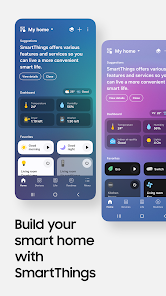
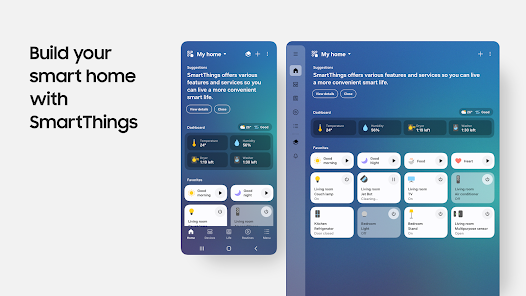
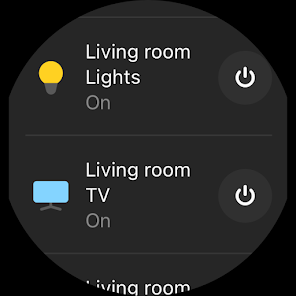
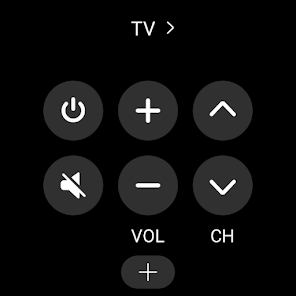
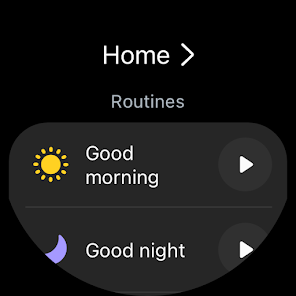
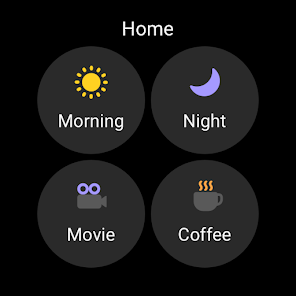
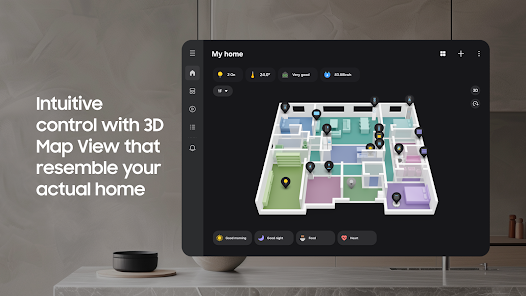
SmartThings is a home automation platform that allows users to control their environment and devices through a single app. The company was founded in 2012 by two former Google employees, Alex Hawkinson and Andrew Birtch. In October of 2013, SmartThings was acquired by Samsung for $200 million.
The SmartThings platform is based on the Internet of Things, which is the concept of connecting physical objects to the internet so they can communicate with each other. This means that users can control their devices remotely, receive notifications about what's happening in their home, and automate their environment according to their preferences.
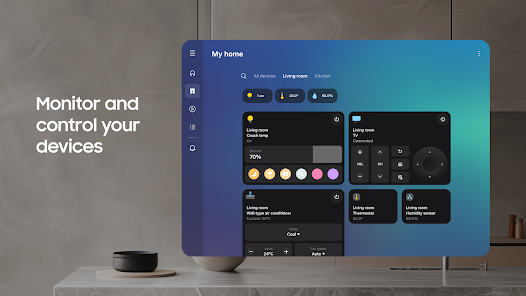
There are three main components to the SmartThings platform: the app, the hub, and the devices. The app is available for iOS and Android devices, and it is used to control all of the devices in your home. The hub is a small device that plugs into your router and connects all of your SmartThings-compatible devices wirelessly. The hub also allows you to control your devices when you're away from home. Lastly, there are a variety of compatible devices that work with SmartThings, including lights, door locks, thermostats, cameras, and more.
SmartThings makes it easy to automate your home and gives you peace of mind knowing that your family and belongings are safe when you're away.
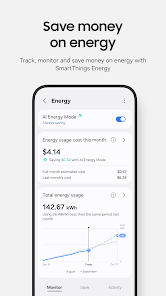
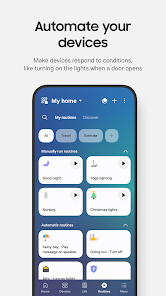
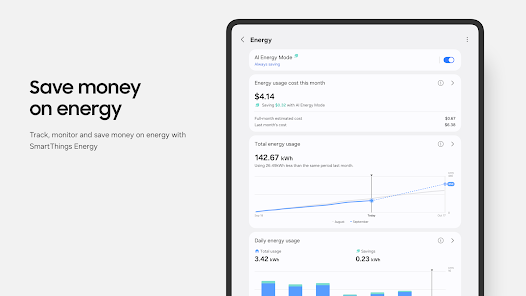
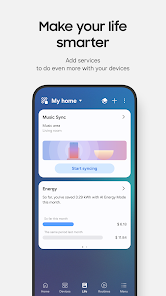
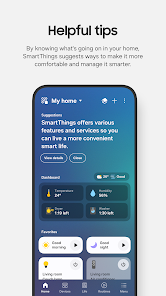
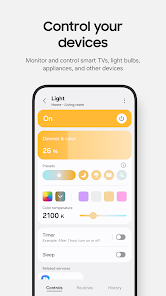
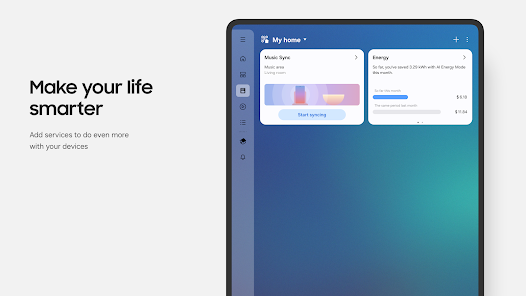
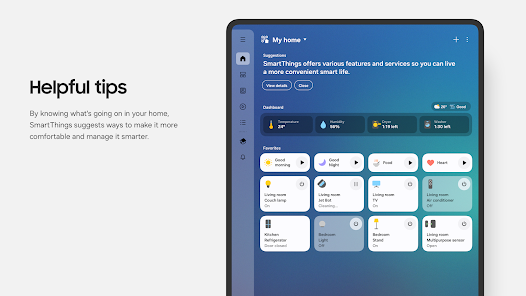
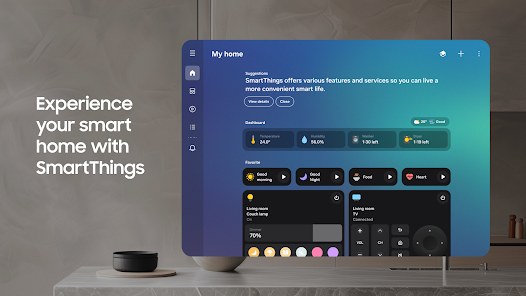
The SmartThings app is a free app that allows you to control your smart home devices from your phone. You can add devices to the app, create rules to automate your home, and view information about your energy usage. The app also works with Amazon Echo and Google Home, so you can voice control your smart home. Assuming you've already downloaded the SmartThings app, open it up and sign in with your Samsung account. If you don't have a Samsung account, you can create one for free. Once you're signed in, you'll be presented with a list of all the devices that are compatible with SmartThings. Select the device you want to connect and follow the on-screen instructions to complete the setup process.Features and Functions
How to Use SmartThings
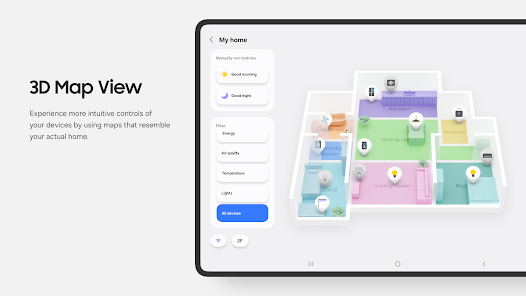
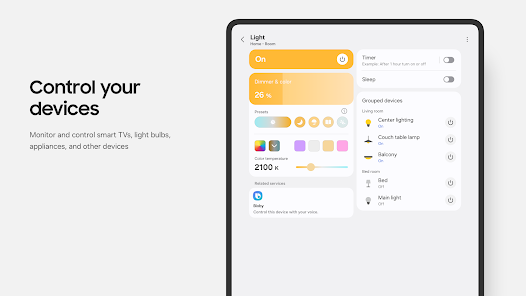
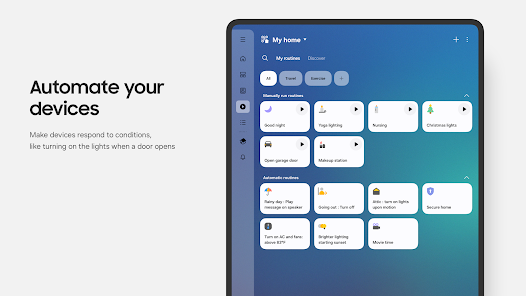
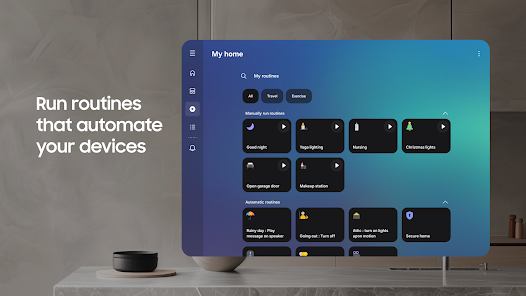
Once your device is connected, you'll be able to use all of SmartThings' features. To get started, try adding some rooms and devices so you can start controlling them from the app. You can also create routines and rules to automate your home. For example, you could set a rule so that your lights turn on when motion is detected or set a routine so that your coffee maker starts brewing at a certain time every morning.
If you ever need help, the SmartThings support team is always available to answer any questions you may have.

 Seamless integration with numerous smart devices User-friendly interface for easy control Customizable automation for personalized experiences Remote access for convenience and peace of mind Energy monitoring to enhance efficiency
 Limited compatibility with non-Samsung devices Setup can be complex for beginners Occasional connectivity issues with devices Reliance on internet for full functionality
 SmartThings may collect personal data to enhance user experience, provide services, and improve functionality. Users should review the privacy policy for detailed information about data collection and usage.
SmartThings is free to download and use with basic features, but certain advanced functionalities and integrations may require a subscription.
While some functionalities of SmartThings can operate locally, an internet connection is typically required for remote access, cloud services, and integration with certain features and devices.
To contact support or send feedback for SmartThings, you can use the support section within the app or visit the SmartThings website for additional resources, including FAQs and customer service options.
You can manage or cancel your SmartThings subscription through the app settings or the SmartThings website, where you will find options related to your account and subscription details.
You can contact SmartThings Customer Service through the app or visit their website for support options, including live chat and email.
To activate SmartThings, download the app, log in, and follow the setup instructions to connect your compatible devices.
Your SmartThings Customer Number can be found in your account settings within the app.
Open the app, tap 'Log In,' and enter your Samsung account credentials or create a new account if you don't have one.






 Google Play
  App Store