











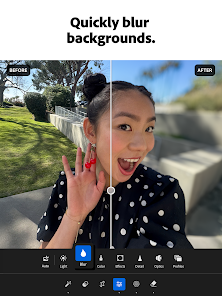
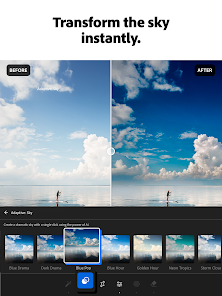
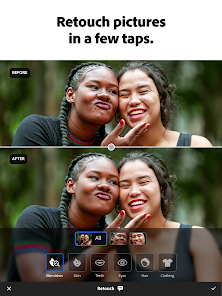
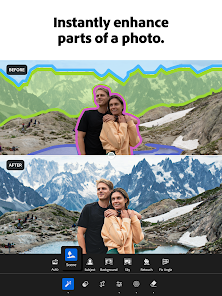
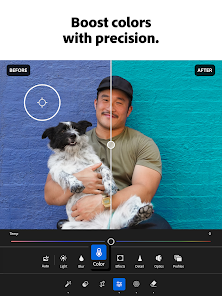


Lightroom Photo & Video Editor is a powerful tool for both amateur and professional photographers and videographers. One of its standout features is its robust editing capabilities, which include a wide array of adjustment sliders for exposure, contrast, highlights, shadows, and more. Users can enhance their images with one-click presets or create their own custom presets to maintain a consistent style across multiple photos. Another significant feature is its non-destructive editing, allowing users to revert to original images at any time, ensuring that the editing process does not compromise the original file. Lightroom also offers organization tools, enabling users to sort, tag, and categorize photos efficiently. The mobile version allows for editing on the go, and cloud syncing ensures that changes are reflected across all devices. Additionally, Lightroom supports video editing, allowing users to trim clips, adjust colors, and apply filters, making it a versatile choice for multimedia projects. Using Lightroom Photo & Video Editor is a straightforward process that can enhance your editing workflow. First, download and install the application on your device, whether it’s a desktop or mobile. Once installed, import your photos and videos into the library by clicking on the “Import” button. You can select multiple files at once for batch processing, which is a time-saver. After importing, navigate to the editing panel where you can begin adjusting your images. Utilize the adjustment sliders for fine-tuning aspects like brightness, contrast, and color balance. For videos, select the clip you wish to edit and use the same editing tools to enhance the footage. Once satisfied with your edits, you can export your images or videos in various formats and resolutions. Don’t forget to save your presets for future use, making your editing process even more efficient. Lightroom Photo & Video Editor has several advantages that make it a preferred choice among photographers. One major pro is its powerful editing capabilities, which allow for detailed adjustments and creative enhancements. The non-destructive editing feature is another significant benefit, as it preserves the original files while allowing users to experiment with different looks. The organization tools help in managing large libraries, and the ability to sync across devices ensures accessibility. However, there are also some drawbacks. The subscription model can be a turn-off for some users as it requires ongoing payments. Additionally, while Lightroom is rich in features, it may have a steeper learning curve for beginners compared to other editing software. Some users also report that the mobile version may not offer all the advanced features available on the desktop. Therefore, while it is an excellent tool, users must weigh these pros and cons based on their individual needs.Features of Lightroom Photo & Video Editor
How to Use Lightroom Photo & Video Editor?
Pros & Cons of Lightroom Photo & Video Editor

 User-friendly interface simplifies photo and video editing for all skill levels. Powerful editing tools enhance creativity and improve visual storytelling. Seamless organization helps manage and find photos effortlessly. Cloud storage allows access to edits from any device, anywhere. Regular updates ensure access to the latest features and improvements.
 Limited offline functionality can hinder editing flexibility. High subscription cost may not suit all budgets. Steeper learning curve for beginners compared to simpler apps.
 Lightroom Photo & Video Editor may collect personal data to enhance user experience and provide personalized services, but users can review the app's privacy policy for detailed information on data collection and usage.
Yes, Lightroom Photo & Video Editor offers a free version with limited features, as well as a trial period for users to explore the full range of premium features before committing to a subscription.
While some features of Lightroom Photo & Video Editor may require an internet connection, such as cloud storage and syncing, many editing functions can be performed offline.
To contact support or send feedback for Lightroom Photo & Video Editor, you can visit the Adobe support website or use the help feature within the app to access resources and customer service options.
You can manage or cancel your Lightroom Photo & Video Editor subscription through the app settings or your account on the Adobe website, where you can also find options for changing your plan.
Yes, customer service can assist you with any subscription-related inquiries, including billing and account issues.
To log in, open the Lightroom app, click on the 'Log In' button, and enter your Adobe ID and password.
You can update your customer number by contacting customer service directly for assistance.
You can activate your account by entering the activation code provided in your purchase confirmation email on the Adobe website.
You can reach customer service through the Adobe website or the help section in the Lightroom app.









 Google Play
  App Store