

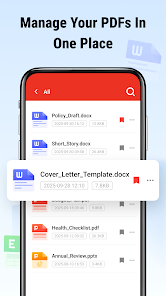
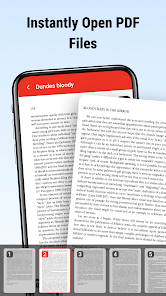
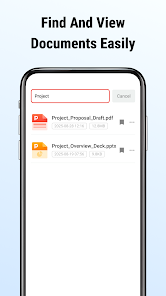
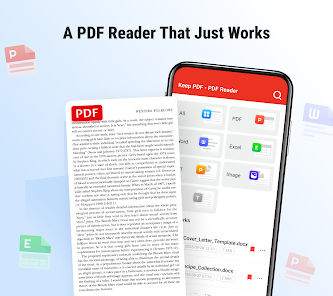
"Keep PDF - PDF Reader" is a versatile application designed to enhance your PDF reading experience. One of its standout features is the ability to annotate documents, allowing users to highlight text, add comments, and draw directly on the PDF. This is particularly useful for students and professionals who need to mark important information or collaborate with others.
Another notable feature is the app's user-friendly interface, which makes navigation seamless. Users can easily zoom in and out, rotate pages, and switch between single and multi-page views. Additionally, "Keep PDF" supports various file formats, enabling users to open not just PDFs but also images and other document types.
The app also includes a powerful search function, allowing users to quickly locate specific text within documents. Furthermore, it offers cloud integration, enabling users to access their files from multiple devices. With features like bookmarks and a night mode for comfortable reading in low light, "Keep PDF - PDF Reader" caters to a wide range of reading preferences.
Using "Keep PDF - PDF Reader" is straightforward and intuitive. After downloading the app, users can easily import PDF files from their device or cloud storage services. To open a document, simply tap on the file, and it will load in the reader interface. Once the PDF is open, users can navigate through the pages using swipe gestures or the on-screen controls.
For those looking to annotate, the app provides a toolbar with various tools such as highlighters, pens, and text boxes. Users can select their preferred tool and start marking up the document as needed. To save changes, simply tap the save icon, ensuring that all annotations are preserved for future reference.
Additionally, users can utilize the search function to find specific terms or phrases within the document. To enhance the reading experience, the app allows users to adjust settings such as brightness and text size. Overall, "Keep PDF - PDF Reader" is designed to be user-friendly, making it accessible for individuals of all skill levels.
Like any application, "Keep PDF - PDF Reader" has its advantages and disadvantages. One of the primary pros is its robust annotation features, which allow users to interact with their documents effectively. The app's intuitive interface also makes it easy for users to navigate and utilize its various functions without a steep learning curve.
Another significant advantage is the cloud integration, which provides flexibility in accessing documents from different devices. The search functionality is also a strong point, enabling users to quickly find information within lengthy PDFs. Additionally, the app's support for multiple file formats enhances its usability.

 Keep PDF - PDF Reader app offers numerous advantages that enhance your reading experience. Easily annotate and highlight text. Organize your documents with folders. Access files offline anytime, anywhere. Supports various PDF formats seamlessly. User-friendly interface for all ages.
 Limited editing capabilities Ads can interrupt usage No cloud storage options Occasional performance lags
  Google Play
  App Store
 Yes, Keep PDF - PDF Reader regularly receives updates to improve functionality, add new features, and enhance overall performance, ensuring users have access to the latest tools and security improvements.
Yes, users can add bookmarks to their PDFs in Keep PDF - PDF Reader, enabling quick access to important sections or pages within the document.
Yes, users can edit PDF files with Keep PDF - PDF Reader. The app allows you to annotate documents, add text, and make various modifications to enhance your PDF experience.
Yes, users can print PDF documents directly from Keep PDF - PDF Reader, provided their device is connected to a compatible printer. This feature facilitates easy access to physical copies of documents.
Yes, Keep PDF - PDF Reader includes a search functionality that allows users to search for specific text within a PDF document, making it easier to find information quickly.
Yes, basic features are available without an account, but advanced features require registration.
You can cancel your subscription through the app store settings or your account settings in the app.
You can contact Customer Service through the app's support section or email them at support
Use the "Forgot Password" option on the login screen to receive a password reset link via email.
Open the app, tap on the "Log In" button, enter your credentials, and press "Sign In."