

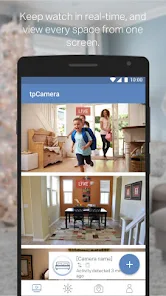
The TP-LINK tpCamera is designed to provide users with a comprehensive surveillance solution. One of its standout features is high-definition video recording, which ensures that every detail is captured clearly. The camera supports 1080p resolution, allowing for crisp and clear images, even in low-light conditions, thanks to its night vision capabilities. Additionally, the tpCamera is equipped with a wide-angle lens, offering a broader field of view to monitor larger areas effectively.
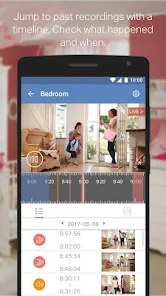
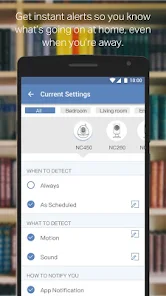
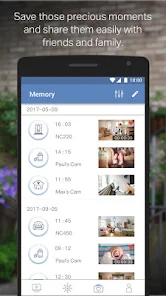
Another notable feature is the two-way audio functionality, enabling users to communicate through the camera. This is particularly useful for monitoring pets or interacting with visitors at your door. The tpCamera also supports motion detection alerts, sending notifications directly to your smartphone when movement is detected. Furthermore, it integrates seamlessly with the TP-LINK Kasa Smart app, allowing for remote access and control from anywhere. Users can easily manage their camera settings, view live feeds, and review recorded footage through the app, enhancing the overall user experience.
Using the TP-LINK tpCamera is a straightforward process that begins with installation. First, download the Kasa Smart app from the App Store or Google Play. Once installed, create an account or log in if you already have one. Next, plug in the tpCamera and ensure it is powered on. Follow the in-app instructions to connect the camera to your Wi-Fi network, which typically involves scanning a QR code displayed on your smartphone.
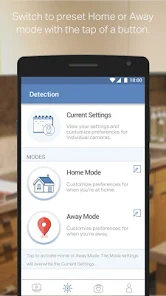
After the camera is connected, you can customize its settings through the app. This includes adjusting the motion detection sensitivity, setting up alert notifications, and configuring the recording schedule. To view live footage, simply select the camera from the app's dashboard. The two-way audio feature can be accessed by tapping the microphone icon, allowing you to communicate through the camera. Regularly check for firmware updates within the app to ensure your camera operates with the latest features and security enhancements.
The TP-LINK Kasa Smart app offers several advantages that enhance the user experience. One of the primary benefits is its user-friendly interface, which makes navigation simple for users of all technical levels. The app provides real-time notifications for motion detection, ensuring that users are promptly informed of any activity. Additionally, the ability to control multiple TP-LINK devices from a single app streamlines home automation, making it convenient to manage various smart devices.
However, there are some drawbacks to consider. Some users have reported occasional connectivity issues, which can disrupt the live feed or delay notifications. Additionally, while the app is generally reliable, it may experience lag during peak usage times. Another potential downside is that certain advanced features may require a subscription for cloud storage, which could be a deterrent for users looking for a completely free solution. Overall, while the app has its limitations, its strengths in usability and functionality make it a valuable tool for managing the TP-LINK tpCamera.

 Experience seamless connectivity Real-time monitoring anytime User-friendly interface design Supports multiple camera views Cloud storage for easy access
 Limited camera compatibility User interface can be confusing Occasional connectivity issues Lacks advanced features
  Google Play
  App Store
 Yes, you can access your camera remotely using the tpCamera app. Once your camera is set up and connected to the internet, you can view the live feed and manage settings from anywhere in the world as long as you have an internet connection on your smartphone.
Yes, you can share access to your camera with other users through the TP-LINK tpCamera app. You can invite other TP-LINK account holders to view the camera by sending them an invitation via the app. This allows multiple users to monitor the camera feed and receive alerts.
To set up the TP-LINK tpCamera app, first download it from the Apple App Store or Google Play Store. Open the app and create an account or log in if you already have one. Follow the on-screen instructions to add your camera by scanning the QR code on the camera or entering the camera's ID manually. Ensure your camera is connected to Wi-Fi for proper functionality.
Yes, the TP-LINK tpCamera app is free to download and use. However, some features, such as cloud storage, may require a subscription or payment. Basic functionalities like live streaming and camera management can be accessed without any additional costs.
The tpCamera app is compatible with most TP-LINK security cameras, but it's advisable to check the specific model's compatibility listed on the TP-LINK website or in the app description before purchasing. Some older models may not support all features available in the app.
Your customer number is typically found in the app settings or on your purchase receipt. If not, contact customer support for assistance.
You can reach TP-LINK customer service through their official website or by calling their support number provided in the app settings.
Open the app and enter your registered email and password. If you are a new user, you can create an account directly in the app.
Yes, after downloading the app, follow the on-screen instructions to register and activate your camera by connecting it to your Wi-Fi network.