

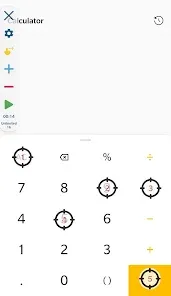
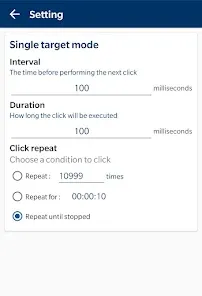
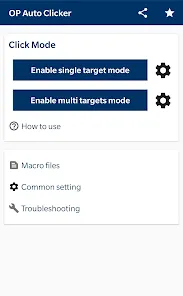
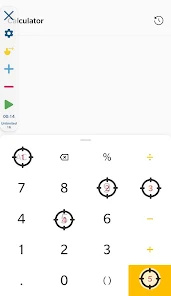
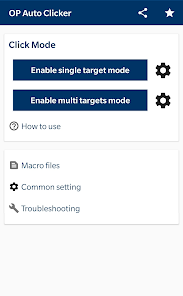
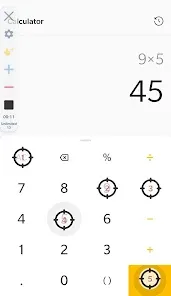
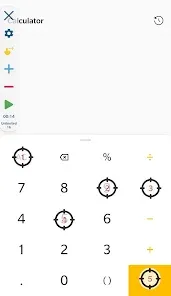
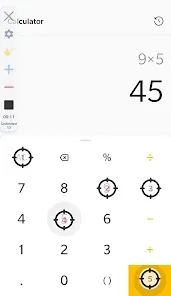
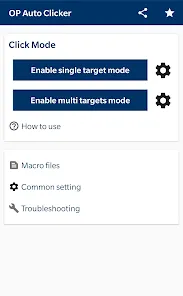
OP Auto Clicker is a tool that automates the process of tapping on your mobile device. It can be used for any number of purposes, such as gaming, productivity, or simply clicking on things that are difficult to reach. In order to use OP Auto Clicker App, you will need to first download and install the app on your Android device. Once the app is installed, launch it and you will be presented with the main interface. From here, you can either start tapping automatically by hitting the "Start" button or configure the app's settings to your liking. There are many reasons you might want to use a auto clicker for a game or other application, but there are also some potential drawbacks to consider. Here are some pros and cons of using OP Auto Clicker:Features and Functions
The app is very user-friendly and easy to set up. You can customize it to fit your needs and preferences. It also has a variety of features that make it even more useful. Here are some of the most notable ones:
• Customizable tap speed: You can choose how fast or slow the taps should be. This is great for getting through those tedious tasks quickly, or taking your time with a challenging game.
• Scheduled taps: If you need to tap at specific intervals (for example, every 30 seconds), you can set up a schedule and let the app do its job.
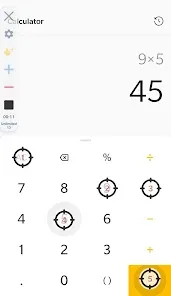
• Multiple click points: You can add multiple click points so that you don't have to keep moving your finger around. This is especially handy for games that require precise tapping.
• Easy setup: The app is very easy to set up and use. You don't need any technical knowledge to get started. Simply download it and start using it right away.How to Use OP Auto Clicker App
If you want to start tapping automatically, simply hit the "Start" button and the app will begin tapping whatever is on your screen at the preset interval that you configured. If you want to stop tapping automatically, just hit the "Stop" button.
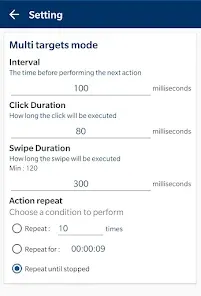
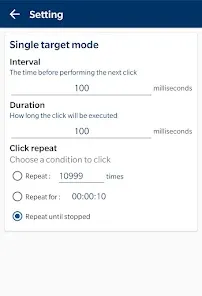
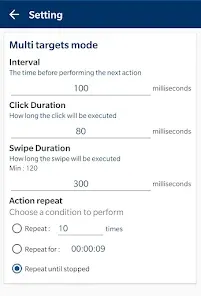
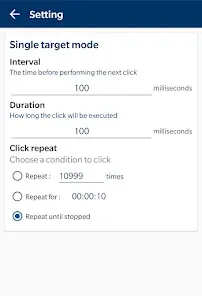
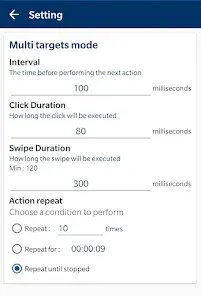
If you want to change the configuration settings of the app, tap on the "Settings" button. In the settings menu, you can change things like the tap interval, enable/disable vibration feedback, enable/disable auto-stop when screen is off, and more. Once you have made your changes, tap on the "Save" button to save them.Pros & Cons
Pros:
-Can help you automate repetitive tasks
-Can help you save time
-Can make it easier to play certain games or use certain applications
Cons:
-May not be allowed in all games or applications
-Could potentially get you banned from some online services
-May interfere with other software on your device

 Fast and efficient tapping for repetitive tasks Customizable settings for personalized usage User-friendly interface for easy navigation Saves time and effort on manual clicking Compatible with various apps and games
 Lacks advanced customization options for clicking patterns May cause unintended clicks affecting app performance Risk of account bans in online games User interface can be confusing for beginners
  Google Play
  App Store
 OP Auto Clicker - Auto Tap does not collect personal data, as it prioritizes user privacy and operates without requiring sensitive information.
Yes, OP Auto Clicker - Auto Tap offers a free version with basic features, allowing users to try the app before considering any premium options.
No, OP Auto Clicker - Auto Tap does not require an internet connection to function, as it operates locally on your device.
You can contact support or send feedback for OP Auto Clicker - Auto Tap through the app's support feature or by visiting the official website, where you can find contact information or a support form.
You can manage or cancel your OP Auto Clicker - Auto Tap subscription through the settings menu in the app or by accessing your account settings on the platform where you subscribed.
You can reach customer service through the app's support section or visit their official website for contact information.
Open the app and navigate to the login section, then enter your registered email and password.
Activation may not be necessary; simply download the app and start using it. For premium features, follow the in-app instructions.
The customer number can typically be found in the app's settings or on their official website under support.