

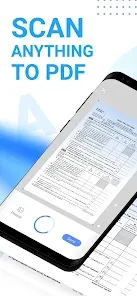
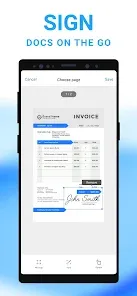
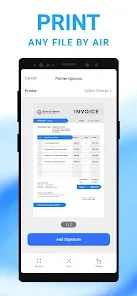
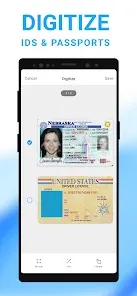
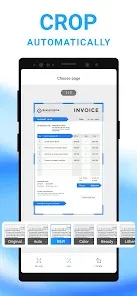
Mobile Scanner App - Scan PDF Mobile App is a mobile application that allows users to scan documents and convert them into PDF files. It is designed to be used on smartphones and tablets, and it can be used to scan documents such as receipts, invoices, business cards, and more. The app also allows users to edit the scanned documents, add annotations, and share them with others.
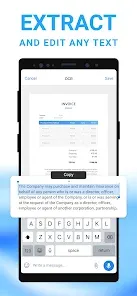
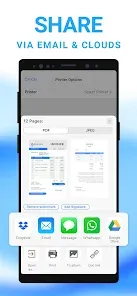
1. Scan documents in high quality: Mobile Scanner App allows you to scan documents in high quality and save them as PDFs. 2. Automatically detect edges: The app can automatically detect the edges of the document and crop it accordingly. 3. Adjust brightness and contrast: You can adjust the brightness and contrast of the scanned document to make it look better. 4. Share documents: You can easily share the scanned documents with others via email, Dropbox, Google Drive, etc. 5. Password protection: You can password protect the scanned documents to keep them secure. 6. OCR support: The app supports Optical Character Recognition (OCR) which allows you to search for text within the scanned documents. 7. Multi-page scanning: You can scan multiple pages and save them as a single PDF file. 1. Download the Mobile Scanner App from the App Store or Google Play. 2. Open the app and select the “Scan” option. 3. Place the document you want to scan on a flat surface. 4. Position your device’s camera over the document and tap the “Scan” button. 5. The app will automatically detect the edges of the document and capture the image. 6. Adjust the corners of the document if needed. 7. Once the image is captured, you can crop, rotate, or adjust the brightness and contrast of the image. 8. When you’re satisfied with the image, tap the “Save” button. 9. Select the file format you want to save the document in (e.g. PDF, JPG, etc.). 10. Enter a name for the file and tap the “Save” button. 11. The document will be saved to your device. Pros: 1. Easy to use: Mobile scanner apps are designed to be user-friendly and easy to use. They are usually equipped with intuitive features that make it easy to scan documents quickly and accurately. 2. Convenience: Mobile scanner apps allow you to scan documents on the go, without having to carry around a bulky scanner. This makes it easy to scan documents while you’re out and about. 3. Cost-effective: Mobile scanner apps are usually free or very affordable, making them a great option for those who don’t want to invest in a physical scanner. 4. Security: Mobile scanner apps are usually equipped with security features that help protect your documents from unauthorized access. Cons: 1. Limited features: Mobile scanner apps usually don’t have as many features as physical scanners, so they may not be suitable for more complex scanning tasks. 2. Quality: Mobile scanner apps may not be able to produce the same quality of scans as physical scanners. 3. Compatibility: Mobile scanner apps may not be compatible with all devices, so you may need to check the compatibility before downloading. 4. Storage: Mobile scanner apps may not have enough storage space to store large documents, so you may need to delete old documents to make room for new ones.Features
How to use Mobile Scanner App - Scan PDF Mobile App?
Pros & Cons

 Easily convert documents into high-quality PDFs with just a few taps. Capture images with precision using advanced scanning technology for clear results. Organize and store scanned documents digitally for easy access and retrieval. Share PDFs instantly via email or cloud services for seamless collaboration. Enjoy a user-friendly interface that simplifies the scanning process for everyone.
 Limited scanning accuracy can lead to poor-quality documents. User interface may feel cluttered and confusing for some. Frequent ads can disrupt the scanning experience and annoy users.
  Google Play
  App Store
 Yes, users can submit suggestions or feedback through the app's support section or via the developer's contact information provided in the app.
The app is designed to prioritize user privacy and does not collect personal data unless explicitly provided by the user.
Yes, the app allows users to scan and save documents offline without requiring an internet connection.
Users can cancel their subscription by going to their account settings in the app store (Google Play or Apple App Store) and following the cancellation process.
Subscription costs may vary depending on the plan, but typically it includes various tiers to access premium features.
Yes, log into your account, go to settings, and select 'Change Email' to update your registered email address.
You can reach customer service through the in-app support feature or by emailing support
Open the app and tap on the 'Login' button. Enter your email and password to access your account.
Technical support can be reached via the in-app help section or by emailing techsupport
Yes, upon first launch, follow the on-screen instructions to create or log in to your account for activation.