

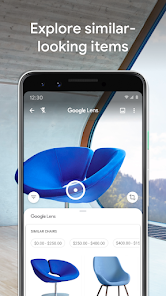
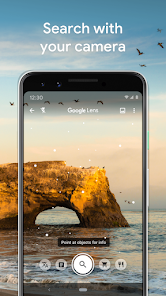
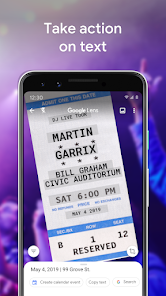
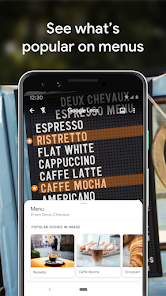
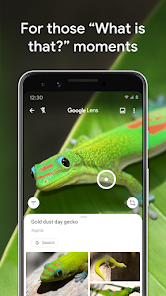
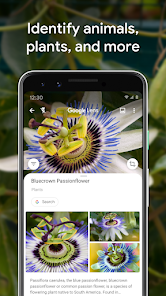
Google Lens is a visual search tool developed by Google. It allows users to search for information on the internet using the camera on their mobile device. For example, users can point their camera at a landmark, book, or product and Google Lens will identify the object and provide information about it. Google Lens can also recognize text in images and allow users to copy and paste it, or translate it into different languages. Google Lens is available as a standalone app on iOS and Android devices, and it is also integrated into other Google products such as Google Assistant and Google Photos. Google Lens allows you to search what you see. By compiling information from several websites utilizing a snapshot, a picture taken with your camera, or practically any image, Lens assists you in finding aesthetically like images and relevant topics.
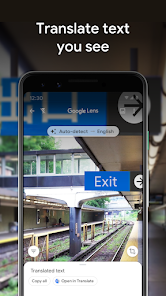
Here are some of the key features of Google Lens: 1. Object recognition: Google Lens uses computer vision and machine learning technologies to identify objects in images. Users can point their camera at an object and Google Lens will provide information about it, such as the name of a landmark, the title of a book, or the details of a product. 2. Text recognition: Google Lens can recognize text in images and allow users to copy and paste it, or translate it into different languages. This can be useful for quickly capturing text from a sign or document, or for understanding text in a foreign language. 3. Integration with other Google products: Google Lens is integrated into other Google products such as Google Assistant and Google Photos. This allows users to access Google Lens directly from these apps and use it to search for information or translate text. 4. Support for multiple languages: Google Lens supports multiple languages, allowing users to search for information or translate text in their language of choice. The supported languages may vary depending on the version and updates of the app. 5. Automatic recognition: Google Lens automatically recognizes objects and text in images without requiring users to manually select them. This makes it easy and convenient to use, allowing users to quickly get information about the objects they see. These are just some of the key features of Google Lens. The app may also include other features, depending on the version and updates. To use Google Lens, you will need to have the Google Lens app installed on your device. Once you have the app installed, you can use it in one of two ways: 1. Open the Google Lens app on your device and point your camera at the object or text you want to search for. Google Lens will automatically recognize the object or text and provide information about it. 2. If you have the Google Assistant app installed on your device, you can also use Google Lens by opening the Google Assistant app and selecting the Google Lens icon. Then, point your camera at the object or text you want to search for. Google Lens will provide information about it. Note: Google Lens is not available on all devices. Check the Google Play Store or the App Store to see if it is available for your device. Yes, the Google Lens app is free to download and use. It is available for both Android and iOS devices from the Google Play Store and the App Store, respectively. You can download and use the app at no cost. However, keep in mind that using the app may require a data connection, which may incur data charges from your mobile provider. By the search box on the Google homepage, Google has put a Google Lens button. You can use Google Lens to search by uploading a photo to Google Search, and Google will then provide you with search results that are aesthetically comparable.Features
How to use Google Lens
Is Google Lens a free download?
Are Google Lens and Google search the same thing?

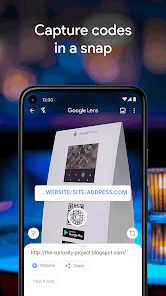
 Instantly identify objects and landmarks around you Translate text in real-time using your camera Find products online for easy shopping comparisons Access detailed information about plants and animals Scan codes and documents effortlessly for quick access
 Limited accuracy with complex images Cannot recognize all languages Requires internet connection for full functionality Privacy concerns with data usage
  Google Play
  App Store
 Google Lens may collect certain data to improve its services, but Google adheres to privacy policies that govern how personal information is handled. Users can review these policies for more details.
Google Lens is available for free, and there is no subscription fee or trial period required to access its core features.
While some features of Google Lens work offline, many functionalities, such as object recognition and text translation, require an internet connection for optimal performance.
Users can contact Google support through the app's help section or visit the Google support website to send feedback or get assistance with Google Lens.
Since Google Lens does not require a subscription, there is no need to manage or cancel any plans. Users can simply download and use the app freely.
You can reach Google support through the Google Help Center online or by using the support option within the app.
Google Lens does not have a customer number; you can use your Google account credentials for any needed support.
Simply open the app and sign in with your Google account credentials to access features and services.
Google Lens is typically activated automatically on supported devices, and no additional activation is required.