

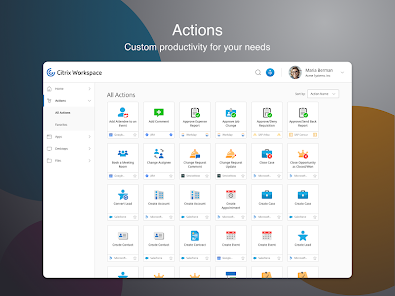
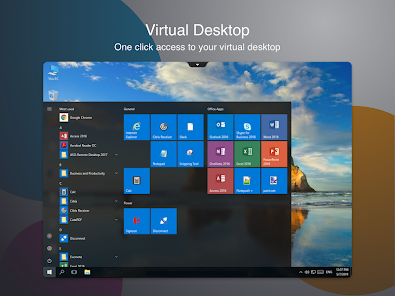
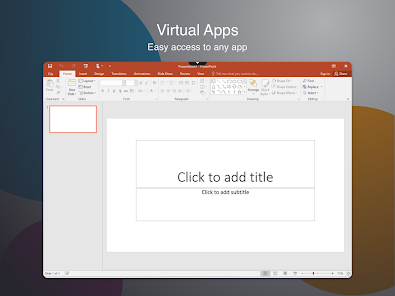
Citrix Workspace App is a Citrix product that provides users with secure access to their desktop and applications. It is designed for use in an office environment, giving users the ability to share files, collaborate on projects and access applications from anywhere. For businesses, Citrix Workspace App can provide a number of benefits, including increased efficiency and productivity. In this blog post, we will discuss some of these benefits and how you can take advantage of them in your business.
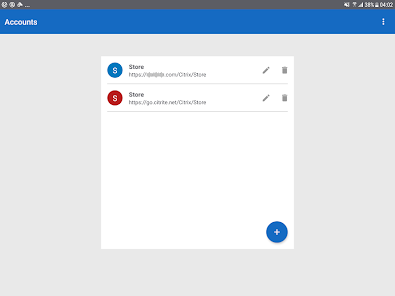
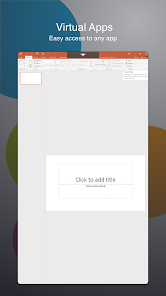
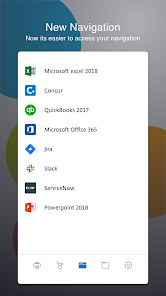
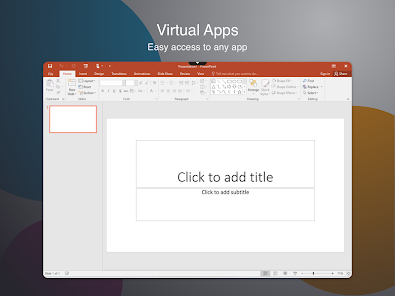
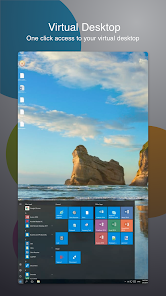
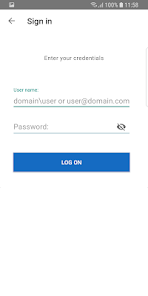
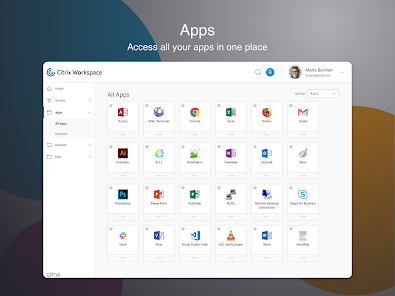
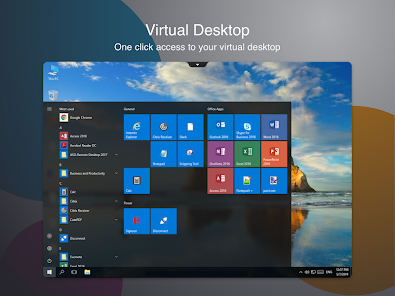
Features Citrix Workspace App is a mobile app that provides remote access to users' applications and desktops from any device. The Citrix Workspace App can be used to work on applications or documents from anywhere in the world, and it is also an excellent way to collaborate with others. However, the Citrix Workspace App has some limitations that may not be ideal for all users. How to use Citrix Workspace Mobile App? To use the Citrix Workspace mobile app, follow these steps: Download the Citrix Workspace app from the App Store or Google Play, depending on your device. Open the app and sign in with your Citrix account. If you don't have a Citrix account, you can create one for free. Once you're signed in, you'll be taken to the Citrix Workspace dashboard, which is the main hub for managing your work and accessing your apps and files. From the dashboard, you can access a range of features and tools to manage and use your apps and files. Some of the key features and tools available in Citrix Workspace include: App launcher: Use the app launcher to access and launch the apps that you need for work, such as email, office productivity, and collaboration tools. File storage and sharing: Use the file storage and sharing tools to access and manage your files, and to share them with your colleagues. Virtual desktops: Use the virtual desktops to access your work desktop from your mobile device, and to run your desktop apps on the go. Security and compliance: Use the security and compliance tools to keep your work apps and files safe and secure, and to ensure that you comply with your organization's security policies. To access a specific feature or tool, simply tap on the relevant tab in the menu at the bottom of the screen. From there, you can use the various tools and features to manage and use your apps and files. Overall, Citrix Workspace is a powerful and comprehensive tool for managing and accessing your work apps and files. By following the steps outlined above, you can use Citrix Workspace to access your work apps and files on the go, and to collaborate with your colleagues from anywhere. Which Devices suppert Citrix Workspace Citrix Workspace is a virtualization and cloud computing platform that can be accessed on a variety of devices, including computers, smartphones, and tablets. Some examples of devices that support Citrix Workspace include: Windows and Mac computers iOS and Android smartphones and tablets Chromebooks Thin clients In order to use Citrix Workspace, your device will need to meet the following minimum requirements: For computers: Windows 7 or later, MacOS 10.10 or later Internet Explorer 11 or later, Google Chrome, or Mozilla Firefox An internet connection with a minimum speed of 1.5 Mbps For smartphones and tablets: iOS 11 or later, Android 6.0 or later The Citrix Workspace app, available for download from the App Store or Google Play An internet connection with a minimum speed of 1.5 Mbps It's always a good idea to check with your IT department or system administrator to make sure that your device meets the necessary requirements for using Citrix Workspace. Pros & Cons Pros: The Citrix Workspace App is a convenient way to work on applications or documents from anywhere in the world. The Citrix Workspace App can be used to collaborate with others. The Citrix Workspace App has many features that make it an excellent choice for remote access and collaboration. Cons: The Citrix Workspace App has some limitations that may not be ideal for all users. For example, it does not support Windows 10 or MacOS Mojave.

 Seamless access to applications from any device Enhanced security with advanced data protection features Improved collaboration through integrated tools and resources Simplified IT management with centralized administration Increased productivity with a unified user experience
 High learning curve for new users Limited offline functionality for remote work Can be costly for small businesses Performance issues on low-bandwidth connections
 Citrix Workspace may collect personal data as part of its standard functionality and security measures, but users can manage their privacy settings and review the privacy policy for more information on data collection practices.
Yes, Citrix Workspace offers a free trial that allows users to explore its features and capabilities before committing to a subscription, although there is no completely free version available.
Yes, Citrix Workspace typically requires an internet connection to access virtual applications and desktops, as well as to synchronize files and collaborate in real-time.
To contact support or send feedback for Citrix Workspace, you can visit the Citrix support website, where you can access resources, submit tickets, or find contact information for customer service.
You can manage or cancel your Citrix Workspace subscription through the account settings on the Citrix website or app, where you can find options for subscription management and cancellation.
You can contact Citrix Customer Service through their support website or by calling their support number listed on your account portal.
Open the Citrix Workspace app, enter your credentials (username and password), and select the appropriate server or resource to log in.
Activation may be required based on your organization's setup. To activate, follow the prompts during the installation or access settings in the app to enter your activation code.
Your Customer Number is typically found in your account details or on invoices. You can also reach out to support for assistance in locating it.








 Google Play
  App Store