

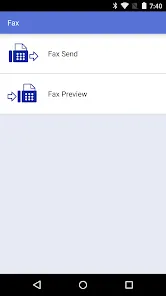
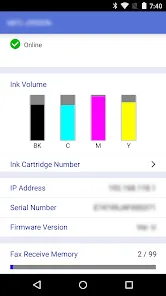
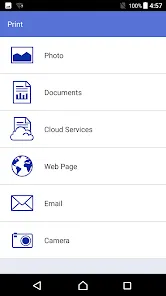
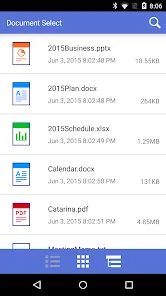
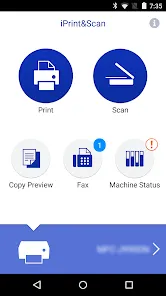
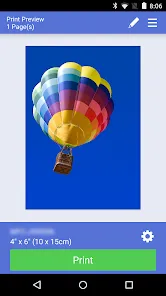
Users of the Brother iPrint&Scan app may print and scan photographs and documents right from their smartphones. It works with a range of Brother printers and scanners and is accessible for iOS and Android devices. With the app, you can quickly scan photographs and documents to your device and print photos, documents, and other items directly from your phone or tablet. The app also gives you access to a number of settings and tools that you can use to personalize your printing and scanning experience.
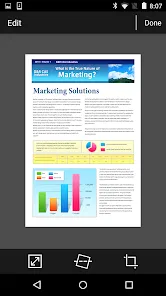
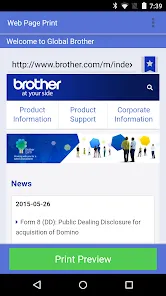
The Brother iPrint&Scan app has a number of useful features, such as the ability to scan photos and documents directly to your device, access and use a variety of advanced printing and scanning settings, and save scanned files to cloud storage services like Dropbox and Google Drive. You can also print photos, documents, and other files directly from your mobile device. The app also gives you access to a number of tools for editing and improving your photographs and lets you preview and modify the settings for your scans and prints. Other capabilities of the software might include support for printing labels and envelopes, direct printing from social media and other online services, and direct printing from well-known cloud storage services. You will need an iOS or Android-powered mobile device, a Brother printer or scanner, and the Brother iPrint&Scan app in order to utilize it. Once you have these things, you can begin by taking the following actions: 1. Download the Brother iPrint&Scan app to your smartphone from the Google Play or App Store. 2. Join your mobile device and your Brother printer or scanner to the same network. 3. Tap the "Devices" tab at the bottom of the screen after launching the app. 4. From the list of available devices, pick your Brother printer or scanner. 5. When your device is connected, you can access the app's scanning and printing features by tapping the "Scan" or "Print" tabs at the bottom of the screen. 6. To scan a document or photo, select your scanner by tapping the "Scan" option, and then scan your item as directed on the screen. 7. Tap the "Print" option, choose your printer, and then select the file you want to print in order to print a document or photo. To send the file to your printer, tap the "Print" button after making any necessary print settings adjustments. 8. The "More" tab is located at the bottom of the page, and clicking it will give you access to extra features and settings for your scans and prints. You will then have access to advanced printing and scanning settings as well as tools for editing and improving your photos. Pros & Cons of Brother iPrint&Scan app One of the main advantages of the Brother iPrint&Scan app is that it allows you to print and scan documents and photos directly from your mobile device, which can be very convenient when you're on the go. Additionally, the app provides access to a range of advanced features and settings that can be used to customize your printing and scanning experience. However, there are also some potential drawbacks to using the Brother iPrint&Scan app. For example, it may not be compatible with all Brother printers and scanners, and you may need to purchase a newer model in order to use the app. Additionally, the app may require a stable internet connection in order to work properly, which could be an issue if you're trying to print or scan in an area with poor connectivity. Finally, the app may not provide as many features and tools as some other printing and scanning apps, which could be a disadvantage for users who need more advanced functionality. Is Brother iPrint&Scan Free? Without a computer, you may print from and/or scan to your AndroidTM and iOS enabled devices, including iPhone, iPad, and iPod touch, using the FREE Brother iPrint&Scan app. Some Brother machines may not support printing or scanning.Features
How to use Brother iPrint&Scan

 Easy mobile printing from smartphones and tablets User-friendly interface for quick navigation Supports various file formats for flexibility Seamless scanning directly to cloud services Remote access for convenient printing anytime
 Limited compatibility with non-Brother devices Lacks advanced editing features Slow document processing speeds Requires constant software updates
 Brother iPrint&Scan may collect certain data as outlined in its privacy policy, but it generally focuses on functionality rather than personally identifiable information.
Brother iPrint&Scan is available as a free app for download, providing users with basic printing and scanning functionalities without a trial period.
Brother iPrint&Scan does not require an internet connection for printing and scanning when connected to a wireless network, but internet access may be needed for specific features or updates.
Users can contact Brother support through the official Brother website or within the app, where they can also submit feedback or report issues.
Since Brother iPrint&Scan is a free app without subscription plans, there are no subscription management or cancellation processes required.
You can reach Brother customer service through their official website or by calling their support number listed on the site.
Generally, no activation is required. If prompted, follow the on-screen instructions to complete the setup.
Open the app, select the printer, and enter your credentials if prompted. If you’re using a network printer, no login is required.
No activation is needed; simply download the app and connect to a compatible Brother printer to start using it.
The customer number varies by region; please check the Brother website or your product documentation for the specific number.









 Google Play
  App Store